

More readers now paste articles into ChatGPT, Claude or Perplexity and ask for the short version. You can make that one click: add a row of “Summarize with AI” buttons to your posts, and each button opens an AI tool with your post already in the prompt.
Readers get the key points in seconds, can ask follow-up questions about your content, and the AI reads your page instead of someone else’s. Try it on this post:
This guide shows you how to add these buttons in WordPress with the Summarize with AI block in Ultimate Blocks, without an API key or any usage costs.
What Are Summarize with AI Buttons?
They are links styled as buttons. Each one opens an AI assistant in a new tab with a ready-made prompt, such as “Read this post and give me a short summary of the key points”, plus the address of your post. The AI tool opens the page, reads it and writes the summary.
Nothing runs on your server. The summary is created on the AI service by the reader, so you do not need an API key and you pay nothing per click.
Why Add AI Summary Buttons to Your Posts?
- Help skimmers: readers who only want the key points get them from your content, not from a competitor’s.
- Keep the conversation on your content: after the summary, readers can ask the AI follow-up questions about your post.
- Put your site in front of AI assistants: every click sends your post URL to the AI tool. You can add your site name to the prompt so the assistant knows where the content comes from.
- Fit long content: guides, research posts, reviews and documentation benefit the most.
What You Need Before You Start
- A WordPress site using the block editor.
- The free Ultimate Blocks plugin and Ultimate Blocks Pro. Summarize with AI is a Pro block, and the newest designs need version 3.7.0 or later.
- Public posts. The buttons do not show on private or password-protected posts, because an AI tool could not read them anyway.
How to Add Summarize with AI Buttons in WordPress
Step 1: Install Ultimate Blocks and Ultimate Blocks Pro
Install the free plugin from Plugins > Add New Plugin, then upload and activate Ultimate Blocks Pro. Keep both active. See how to install and activate Ultimate Blocks Pro.
Step 2: Add the Summarize with AI Block
Open a post in the block editor, click the + (Block Inserter) button and search for Summarize with AI. Searching “summarize” or “AI” also works. Add the block, and buttons for ChatGPT, Claude, Perplexity and Gemini appear right away.
Step 3: Choose the AI Tools
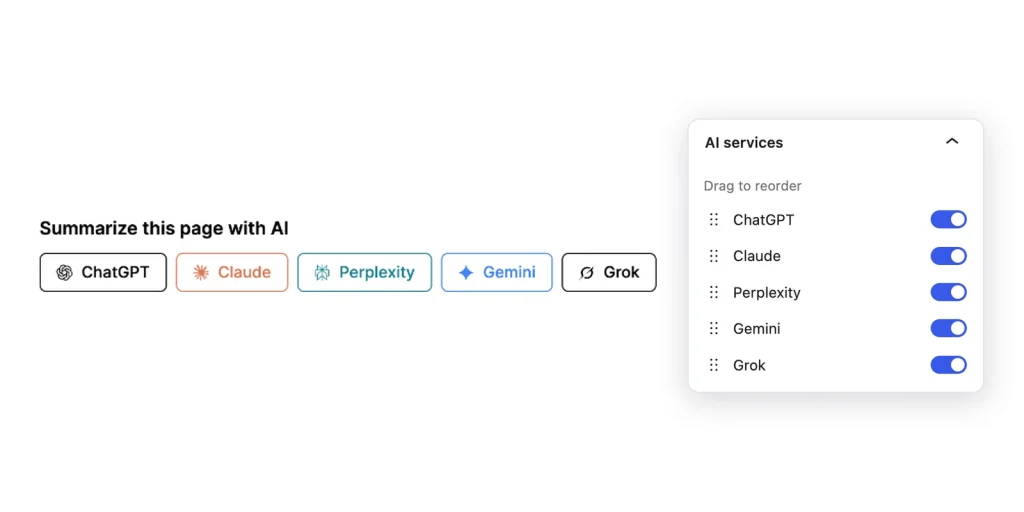
Open the AI services panel. Turn each service on or off and drag them into the order you want. ChatGPT, Claude, Perplexity and Gemini are on by default, and Grok is available too. The Gemini button opens AI Mode in Google Search, which runs on Gemini, because the Gemini app does not accept a prompt in a link.
Step 4: Write the Prompt
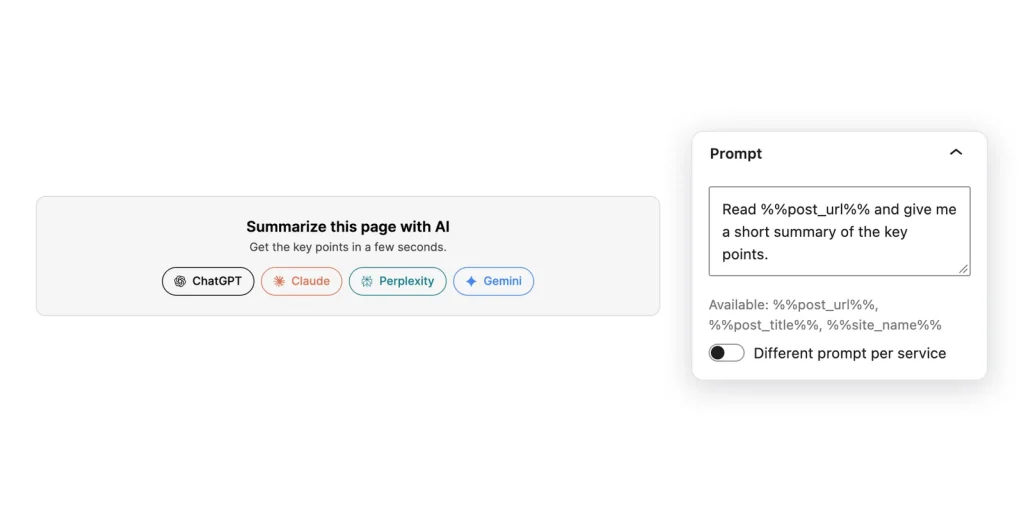
The Prompt panel holds the text sent to the AI tools. The default asks for a short summary of the key points. You can write your own with three variables:
%%post_url%%: the address of the post. Always keep it, so the AI can open your page.%%post_title%%: the title of the post.%%site_name%%: your site name.
For example: Summarize %%post_title%% from %%site_name%% (%%post_url%%) in 5 bullet points. Turn on Different prompt per service to give each tool its own prompt, such as a list of sources in Perplexity.
Step 5: Pick a Design
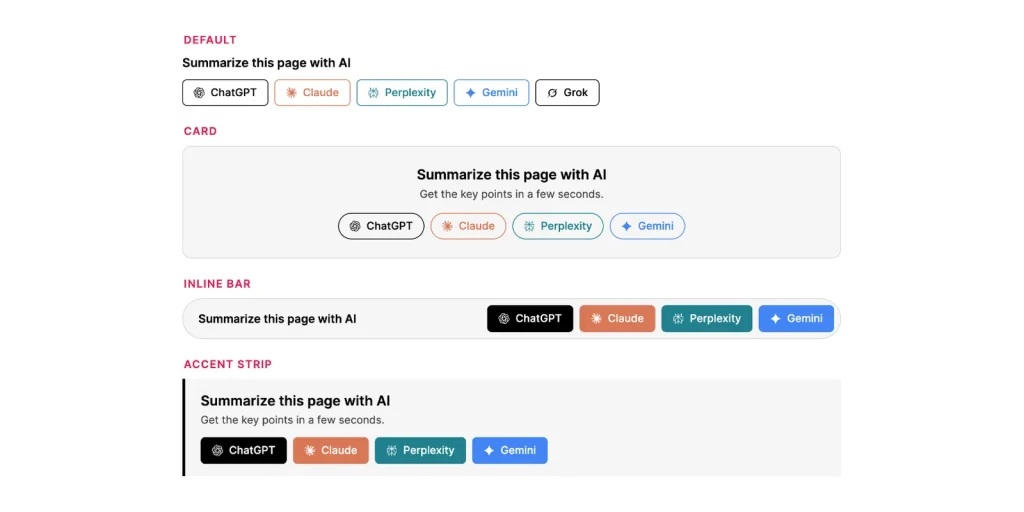
Switch to the Styles tab and choose one of four designs:
- Default: the heading and buttons on their own.
- Card: everything inside a box.
- Inline bar: one slim row that fits neatly under a title.
- Accent strip: a colored strip down the side.
Here is the Inline bar design:
The Styles tab also has background, button and label colors, font sizes, padding and a corner radius for the whole block.
Step 6: Style the Buttons and Labels
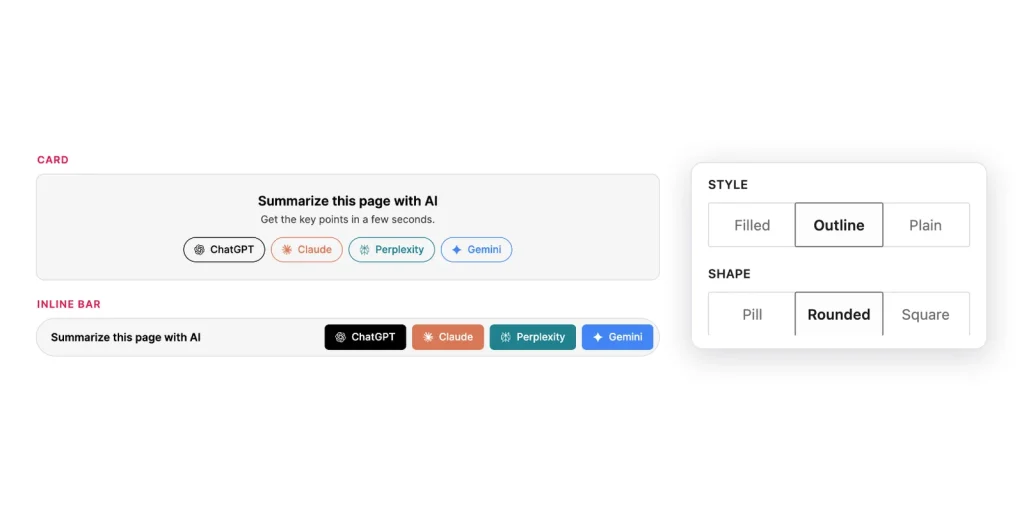
In the Buttons panel, choose Filled, Outline or Plain buttons, Pill or Rounded corners, and the size and gap. In the Labels panel, edit the heading text (“Summarize this post with AI” by default), add a short description, and rename each button, for example “Ask ChatGPT”.
Step 7: Keep It Tidy on Phones
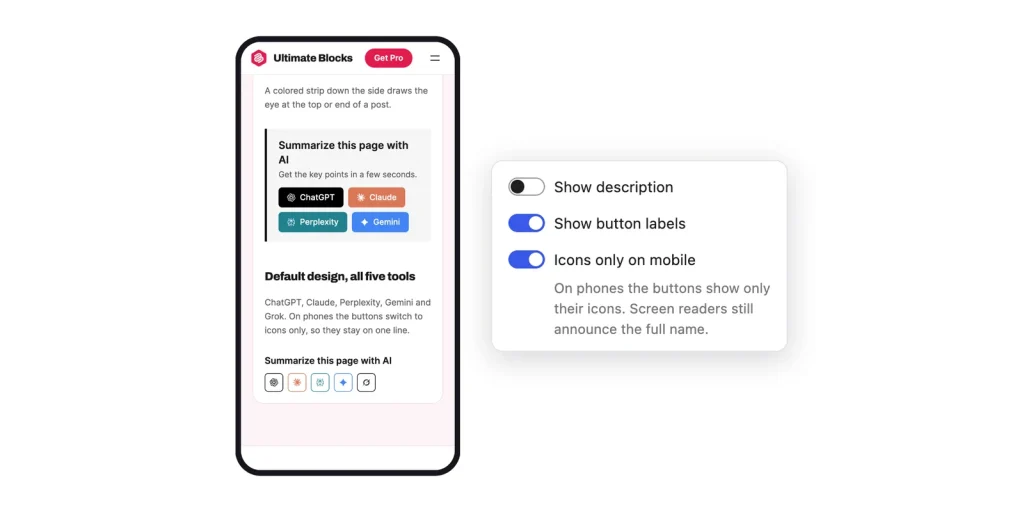
Turn on Icons only on mobile in the Labels panel. On phones the buttons then show only their icons, so the whole row fits on one line. Screen readers still announce the full name of each tool.
Step 8: Add the Buttons to Every Post (Optional)
To show the buttons on all posts, add the block to your single post template: go to Appearance > Editor > Templates, open the single post template, place the block near the top of the content and save. The block builds its links from the post being viewed, so one block works everywhere.
By default the buttons are hidden on posts marked noindex in Yoast SEO, Rank Math, SEOPress or All in One SEO, and they do not show on archives or search results unless you turn on Show on archives and search.
Tips for Better AI Summaries
- Place the buttons near the top. Skimmers decide in the first few seconds.
- Keep %%post_url%% in every prompt. Without it the AI cannot read your post.
- Ask for a format. “5 bullet points” or “3 key takeaways” gives cleaner results than “summarize”.
- Mention your site name. It helps the assistant credit your site in its answer.
- Write clear headings. AI tools summarize well-structured posts more accurately.
Frequently Asked Questions
Do I need an OpenAI or other API key?
No. The buttons only open the AI tool with your prompt filled in. The reader creates the summary on the AI service, so there is no API key and no usage cost for you.
Which AI tools are supported?
ChatGPT, Claude, Perplexity, Gemini and Grok. The first four are on by default, and you can turn each one on or off and reorder them.
Is the Summarize with AI block free?
No. It is a Pro block included in every Ultimate Blocks Pro plan, which comes with a 30-day money-back guarantee.
Can I change the prompt?
Yes. Edit the Prompt panel and use the variables %%post_url%%, %%post_title%% and %%site_name%%. You can also set a different prompt for each AI tool.
Why do the buttons not show on some pages?
They are hidden on private and password-protected posts, on noindex posts when Hide on noindex content is on, and on archives and search results unless Show on archives and search is on.
Wrapping Up
Summarize with AI buttons give skimmers what they want and keep your content at the center of their AI conversations. With Ultimate Blocks Pro you add the block, choose the tools, tweak the prompt and pick a design.
For every option, read the Summarize with AI block documentation.
Questions? Leave a comment below and we will help you out.
Found this helpful? See more of us on Google.
Add UltimateBlocks.com as a preferred source and our WordPress guides will show up more often in your Top Stories, AI Overviews and AI Mode.
Free, one tap, remove anytime


Leave a Reply