

Stacked cards are one of the most popular scroll effects on modern websites. As you scroll, each card pins to the screen and the next one slides up and covers it, like a deck being dealt onto a table.
The effect keeps readers focused on one idea at a time, which makes it great for steps, features and key takeaways. Scroll through the demo below to see it:
1. Create the page
Start a new post or page and add the Stacked Cards block.
2. Write your cards
Each card holds any blocks: headings, text, images, buttons.
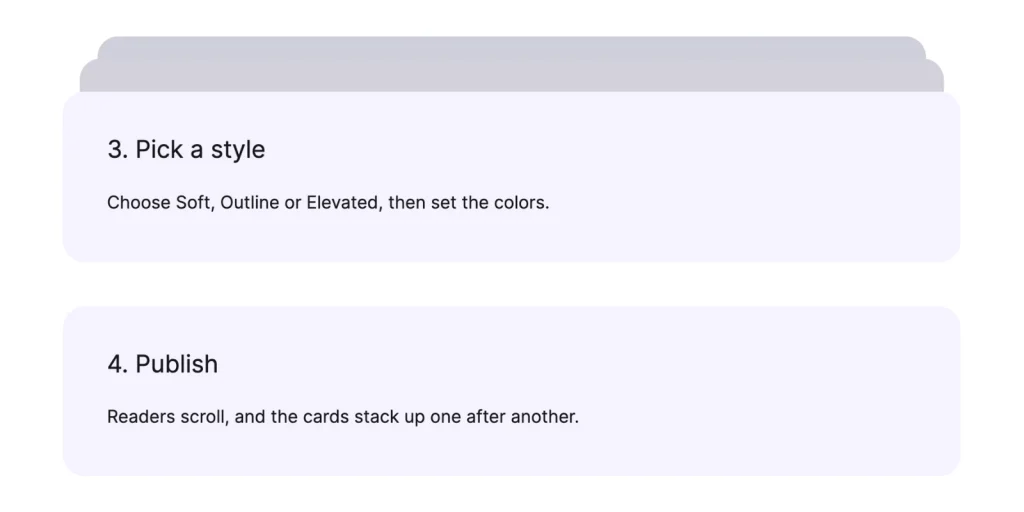
3. Pick a style
Choose Soft, Outline or Elevated, then set the colors.
4. Publish
Readers scroll, and the cards stack up one after another.
Until recently you needed custom code or a page builder to get this. This guide shows you how to build stacked cards in the WordPress block editor with the Stacked Cards block in Ultimate Blocks, in both scroll mode and swipeable deck mode.
What Are Stacked Cards?
Stacked cards are content cards placed on top of each other. The Stacked Cards block offers two ways to move through them:
- Scroll mode: each card sticks to the top of the screen as the reader scrolls, and the next card slides over it. The covered cards can shrink, darken or blur slightly, so the stack has depth.
- Deck mode: the cards sit in a pile. Readers go through them with a swipe, the arrows, the keyboard or autoplay, like flipping through a deck.
Here is deck mode. Swipe, click the card or use the arrows:
Feature tours
Show a product one feature at a time.
Step-by-step guides
One step per card keeps a long tutorial easy to follow.
Customer quotes
Let readers flip through what your customers say.
Key takeaways
Sum up a long post in a few short cards.
When to Use Stacked Cards
- Step-by-step guides: one step per card keeps a long tutorial easy to follow.
- Feature tours: walk readers through a product one feature at a time.
- Process sections: show how you work, from first call to launch.
- Testimonials: let visitors flip through customer quotes in deck mode.
- Key takeaways: sum up a long post in a few cards at the end.
What You Need Before You Start
- A WordPress site using the block editor.
- The free Ultimate Blocks plugin.
- Ultimate Blocks Pro 3.7.0 or later. Stacked Cards is a Pro block.
On the free plugin you will see Stacked Cards in the inserter with a PRO badge and a preview. Adding it saves nothing to the post until Pro is active.
How to Create Stacked Cards in WordPress
Step 1: Install Ultimate Blocks and Ultimate Blocks Pro
Install the free plugin from Plugins > Add New Plugin, then upload and activate Ultimate Blocks Pro. Keep both plugins active. See how to install and activate Ultimate Blocks Pro.
Step 2: Add the Stacked Cards Block
Open a post or page, click the + (Block Inserter) button, search for Stacked Cards and add the block.
Step 3: Add Content to Your Cards
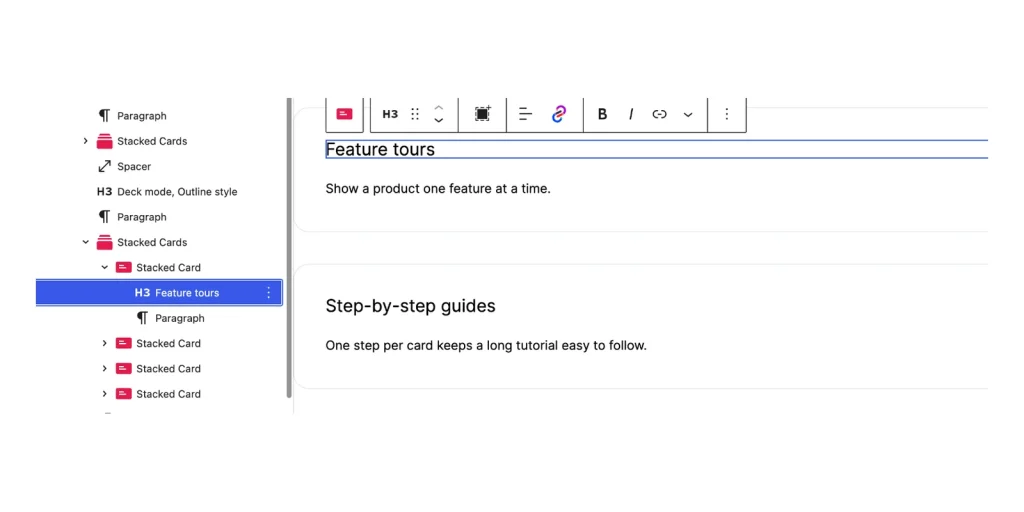
Each card is a Stacked Card block inside the main block. Click + Add card under the last card to add another. A card can hold any blocks: headings, paragraphs, images, lists, buttons and more.
In the editor the cards are listed one under the other, so each one stays easy to edit. The stacking only happens on the published page, so use Preview to see it.
Step 4: Choose Scroll or Deck Mode
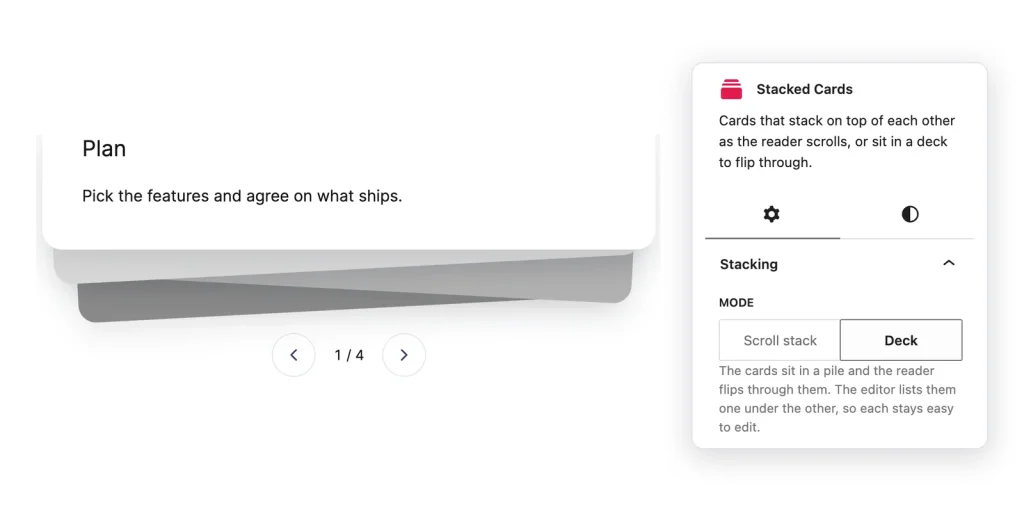
Select the main Stacked Cards block (not a single card) and open the Stacking panel in the Settings tab. Set Mode to Scroll stack or Deck.
For scroll mode, set Distance from the top (leave room for a sticky header if your theme has one) and Card offset, which makes each card stop a little lower so the cards behind it peek out.
Step 5: Set Up Deck Mode (Optional)
With Mode set to Deck, the Deck panel appears:
- Rotation (deg): how much the cards behind tilt left and right.
- Click a card for the next one: clicking moves to the next card. Links and buttons inside a card still work.
- Show arrows: previous and next arrows with a card counter.
- Autoplay (seconds): move to the next card on a timer. 0 turns it off, and it pauses while a reader uses the deck.
Step 6: Add Depth and Pick a Style
The Depth panel controls what happens to a card once the next one covers it: Shrink (%), Darken (%) and Blur (px). Small values look best.
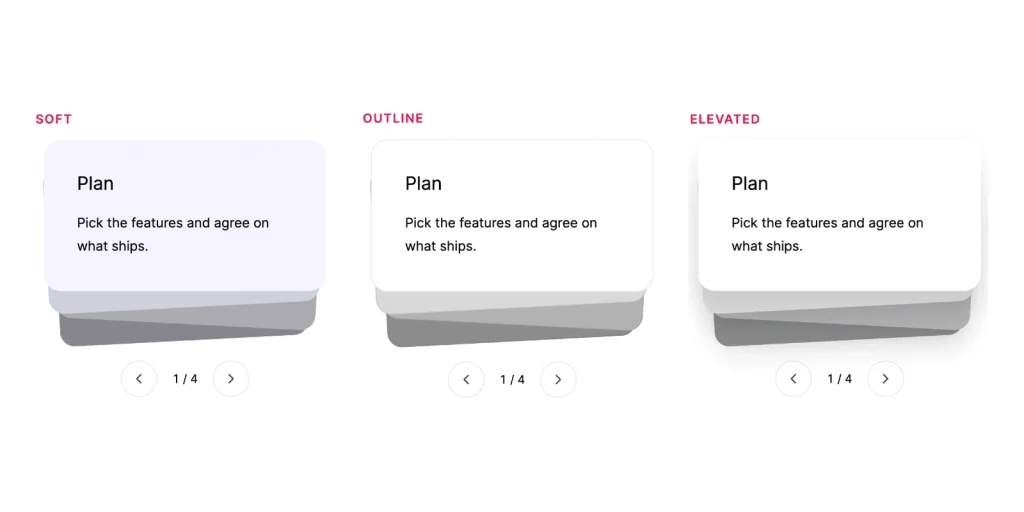
In the Styles tab, choose Soft, Outline or Elevated, then set the card colors, padding and corner radius.
Step 7: Check Phones and Publish
Deck mode works with a swipe on touch screens. For scroll mode, you can turn on No stacking on phones in the Mobile and Motion panel, and the cards show as a simple list on small screens. Readers whose device asks for less motion still get the stack, without the shrink, darken and blur effects.
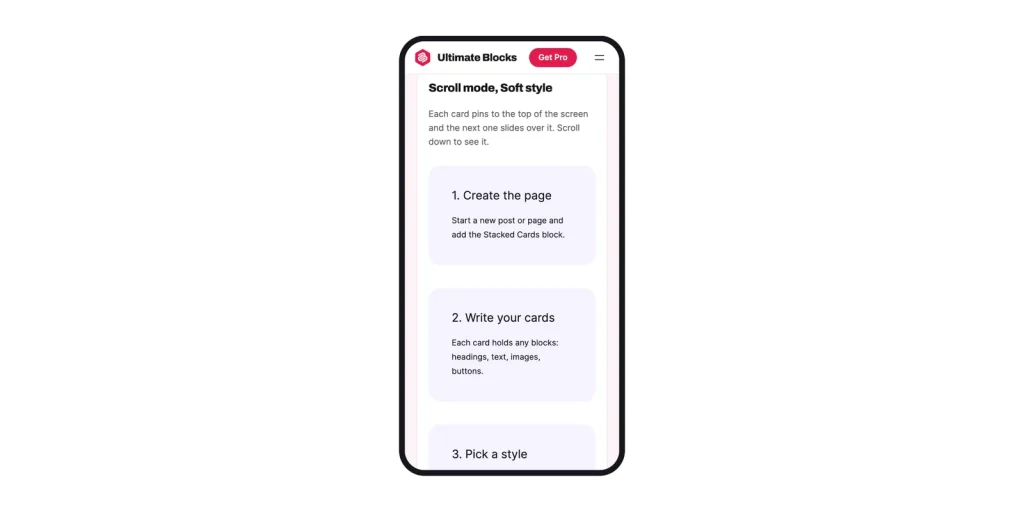
Click Publish or Update, then scroll through the live page on a computer and a phone.
Tips for Stacked Cards That Work
- Keep each card short. In scroll mode a card should fit on one screen while it is pinned.
- Use three to six cards. Enough for a story, not so many that readers feel stuck.
- Give each card a clear heading. Readers should know what each card is about at a glance.
- Mind your sticky header. Raise Distance from the top so cards do not slide under it.
- Use deck mode for optional content. Testimonials and examples suit a deck, because readers choose how far to go.
Frequently Asked Questions
Is the Stacked Cards block free?
No. Stacked Cards is a Pro block, so you need Ultimate Blocks Pro together with the free plugin. Every Pro plan has a 30-day money-back guarantee.
What is the difference between scroll mode and deck mode?
In scroll mode the cards pin to the screen and stack as readers scroll. In deck mode the cards sit in a pile and readers go through them with a swipe, the arrows, the keyboard or autoplay.
What can I put inside a card?
Any block, including headings, paragraphs, images, lists and buttons.
Why do the cards not stack in the editor?
The editor lists the cards one under the other so each stays easy to edit. Preview or publish the page to see them stack.
Do stacked cards work on mobile?
Yes. Deck mode works with a swipe. In scroll mode, turn on No stacking on phones to show the cards as a simple list on small screens.
Wrapping Up
Stacked cards turn a list of points into something readers want to scroll through. With Ultimate Blocks Pro you add the block, fill your cards with any content and choose scroll or deck mode, no code needed.
For every setting, see the Stacked Cards block documentation.
Questions? Leave a comment below and we will help you out.
Found this helpful? See more of us on Google.
Add UltimateBlocks.com as a preferred source and our WordPress guides will show up more often in your Top Stories, AI Overviews and AI Mode.
Free, one tap, remove anytime


Leave a Reply