

Want to add videos to your WordPress website but not sure where to start?
Whether you want to upload a video directly to your site or embed one from YouTube or Vimeo, WordPress makes the process simple with its built-in block editor. You can insert videos in just a few clicks, no coding required.
In this guide, you’ll learn how to:
- Upload a video using the default WordPress Video block
- Embed videos from YouTube and other supported platforms
- Add videos with more control using an advanced video block
By the end, you’ll know exactly which method works best for your content and how to implement it step by step.
Let’s get started.
Method 1: Upload a Video Using the Default WordPress Video Block
If you want to host the video directly on your website, you can upload it using the default WordPress Video block.
To upload a video in WordPress, simply add the Video block in the Block Editor and upload your file from your computer or Media Library.
Step 1: Add the Video Block
Open the page or post where you want to add the video.
Click on the Add Block (+) button and search for “Video.” Then select the Video block to insert it into your content.
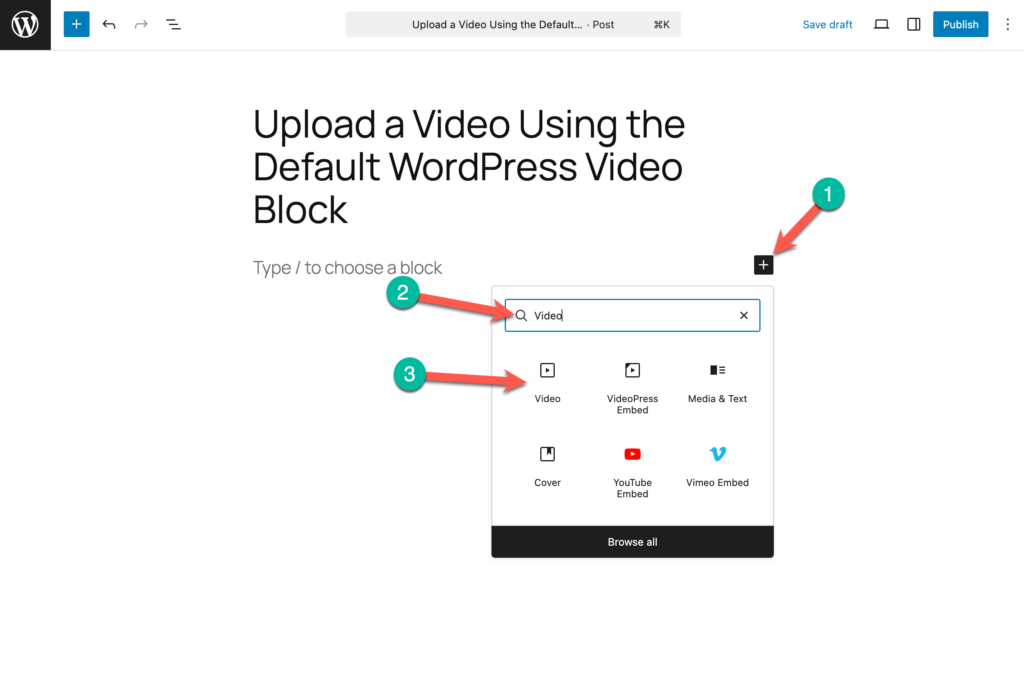
Step 2: Upload Your Video File
Once the block is added, you will see three options:
- Upload – Upload a video file from your computer
- Media Library – Choose a video you’ve already uploaded
- Insert from URL – Add a video using a direct link
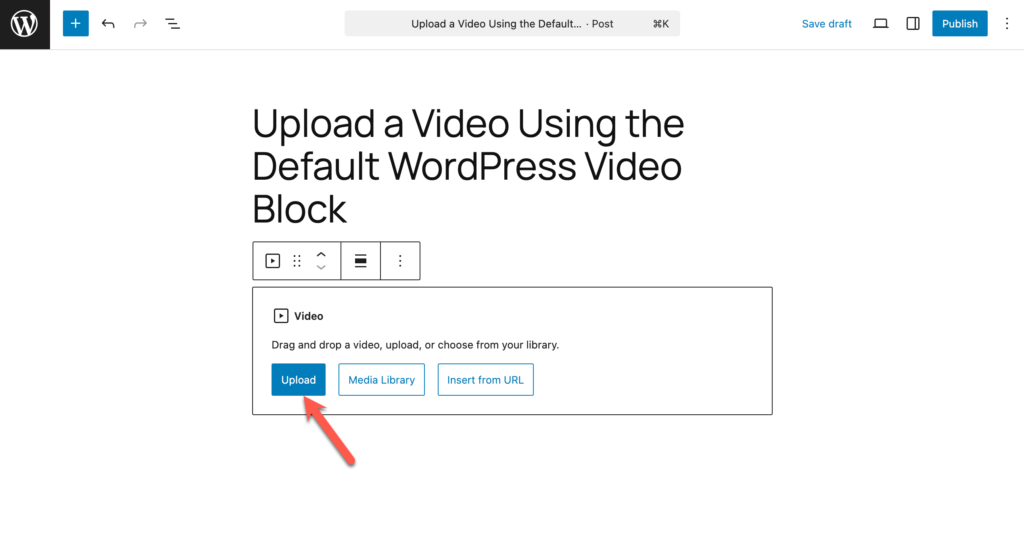
Click Upload to add a new video file from your device.
Step 3: Select and Upload the File
Choose your video file from your computer and click Open.
WordPress will automatically upload and display the video inside your post or page.
Alternative: Drag and Drop
You can also drag and drop the video file directly into the editor, and WordPress will automatically create a Video block for you.
Important Note About Uploading Videos
Uploading videos directly to WordPress means the file is stored on your hosting server. Large video files can:
- Increase page load time
- Use more bandwidth
- Consume server storage
For short videos or private content, this method works well. For larger or public-facing videos, embedding from platforms like YouTube may be more efficient (covered in Method 2).
Method 2: Embed a Video from YouTube or Other Platforms
If you don’t want to host the video file on your website, you can embed it from a video hosting platform.
To embed a video in WordPress, simply paste the video URL into a supported block, and WordPress will automatically convert it into an embedded player.
WordPress supports many popular platforms, including:
- YouTube
- Vimeo
- Twitter (X)
- Twitch
- Dailymotion
- TED
- WordPress.tv
- VideoPress
- Hulu
- And several others via oEmbed support
For this tutorial, we’ll show how to embed a YouTube video.
Step 1: Copy the Video URL
Go to the YouTube video you want to embed.
Copy the full video URL from your browser’s address bar.
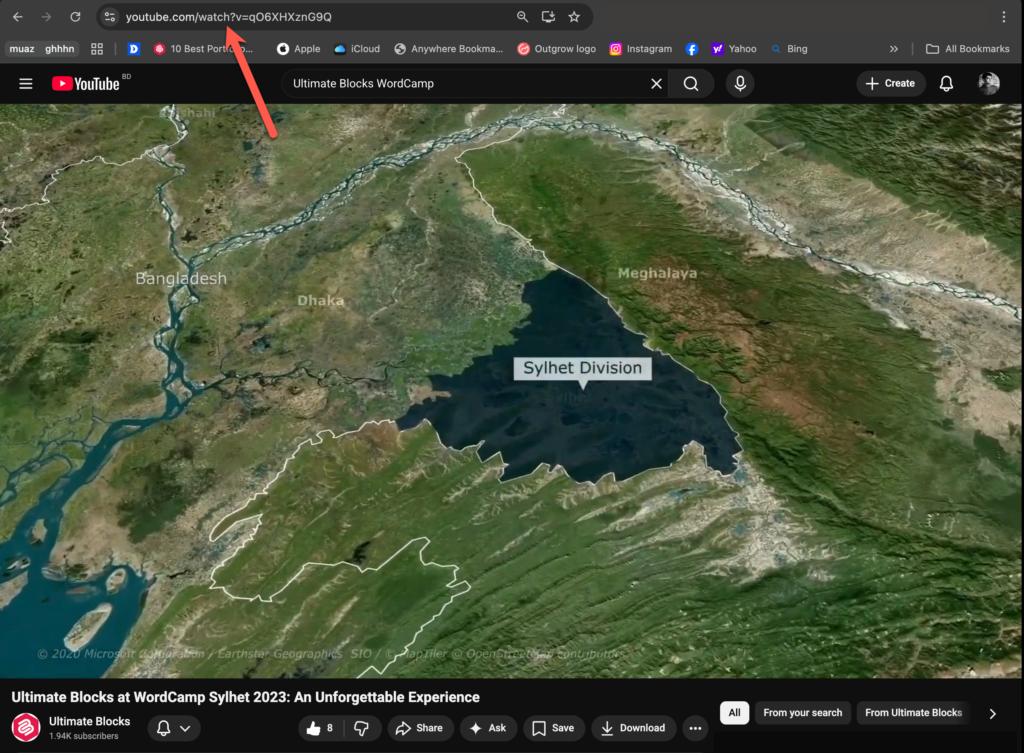
Example:https://www.youtube.com/watch?v=xxxxxxx
Step 2: Add the YouTube Block
Open the page or post where you want to embed the video.
Click the Add Block (+) button and search for “YouTube.” Select the YouTube block to insert it into your content.
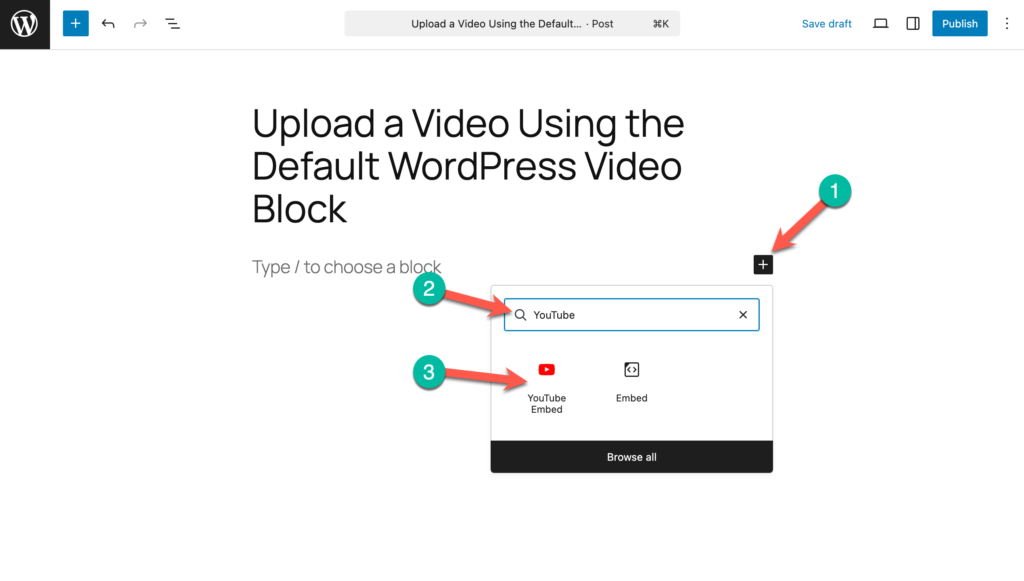
Step 3: Paste the URL and Embed
Paste the copied video URL into the block and click Embed.
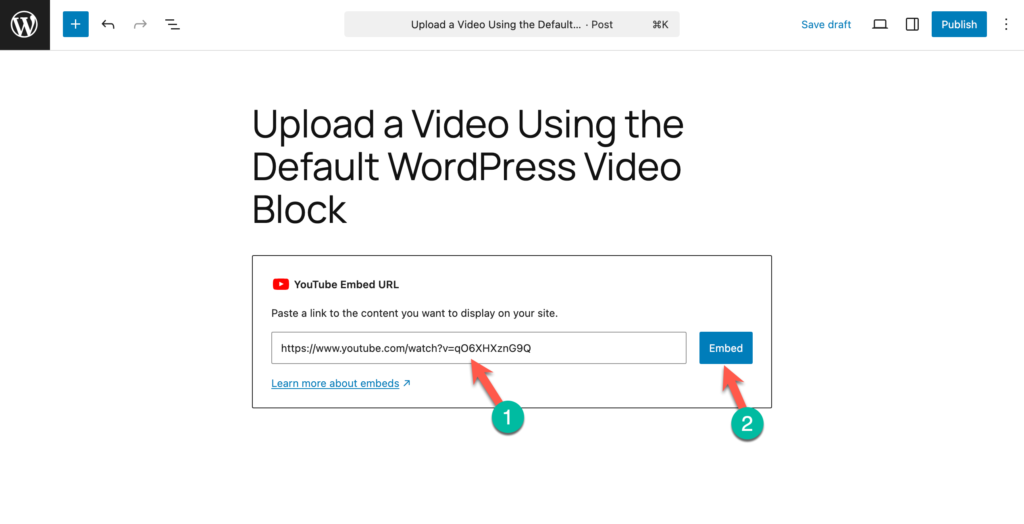
WordPress will automatically fetch the video and display it inside your post.
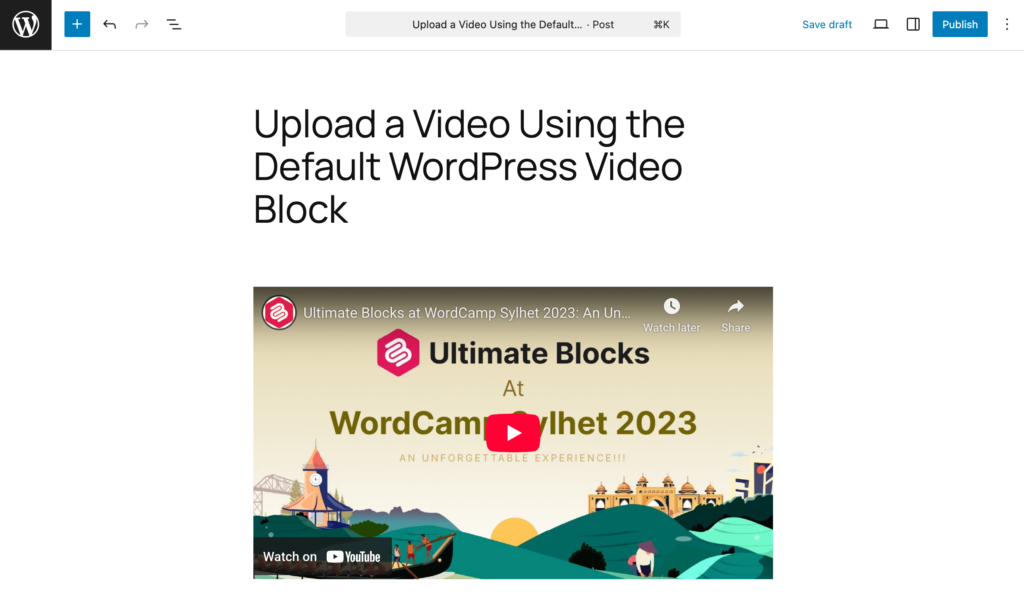
Alternative: Paste the URL Directly
You can also paste a YouTube link directly into the editor on a new line. WordPress will automatically convert it into an embedded video block.
Why Embedding Is Often Preferred
When you embed a video:
- The video file remains hosted on the external platform
- Your server does not store the video
- Large file sizes won’t affect your hosting storage
This makes embedding ideal for long or high-resolution videos.
Method 3: Add or Embed Videos with More Control (Using Ultimate Blocks)
The default WordPress Video block works well for basic uploading and embedding. However, if you want more control over how your videos look and behave, you can use an advanced video block like the Video (UB) block by Ultimate Blocks.
The Video (UB) block allows you to both upload videos and embed them from a URL, while offering additional customization options for layout, playback, and styling.
Step 1: Install and Activate Ultimate Blocks
If you haven’t already:
- Go to Plugins → Add New
- Search for Ultimate Blocks
- Install and activate the plugin
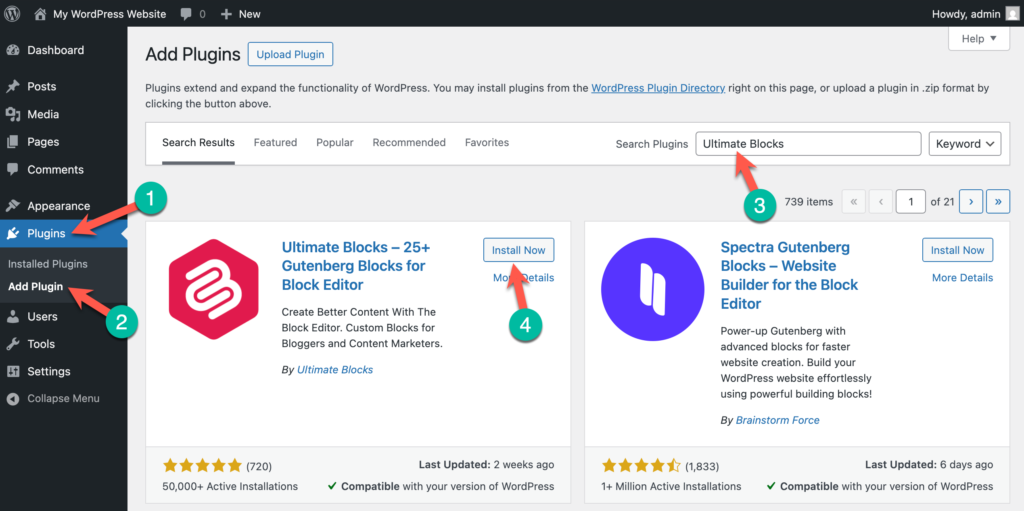
Once activated, you’ll have access to the Video (UB) block inside the editor.
Step 2: Add the Video (UB) Block
Open your page or post.
Click the Add Block (+) button and search for “Video (UB)”. Insert the block into your content.
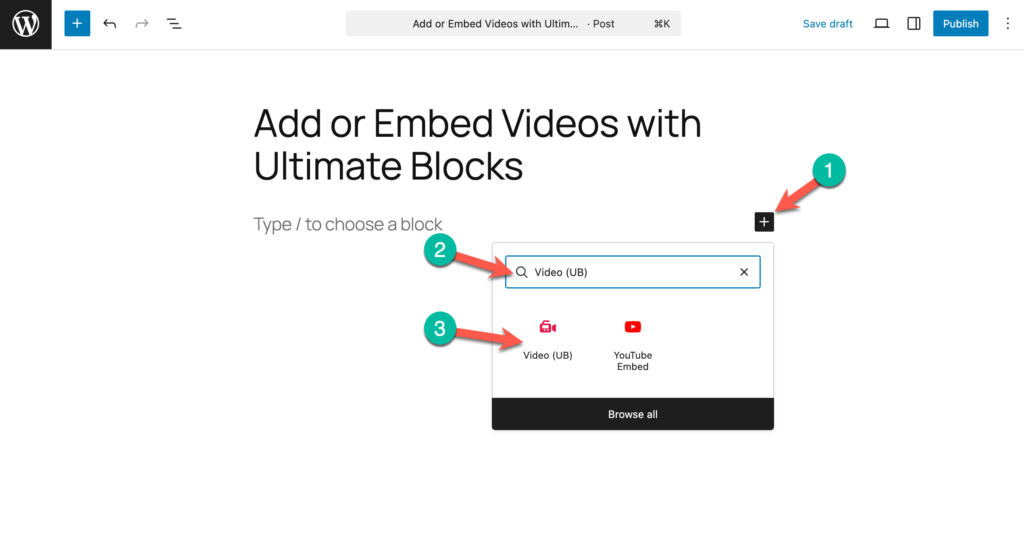
Step 3: Upload or Embed a Video
Inside the Video (UB) block, you can:
- Upload a video file from your computer
- Select a video from the Media Library
- Insert a video from a URL
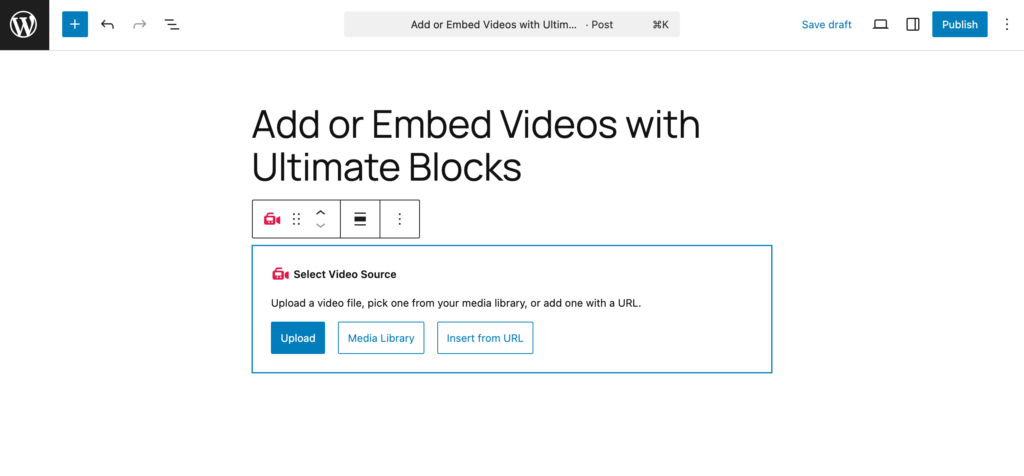
This means you can use the block for both self-hosted and embedded videos.
Step 4: Customize Video Settings
Unlike the default block, the Video (UB) block provides additional controls such as:
- Adjusting the aspect ratio
- Enabling autoplay
- Looping the video
- Muting on load
- Setting a custom start time
- Showing or hiding player controls
- Adding a custom thumbnail
- Applying animations
- Controlling visibility
- Adding custom CSS
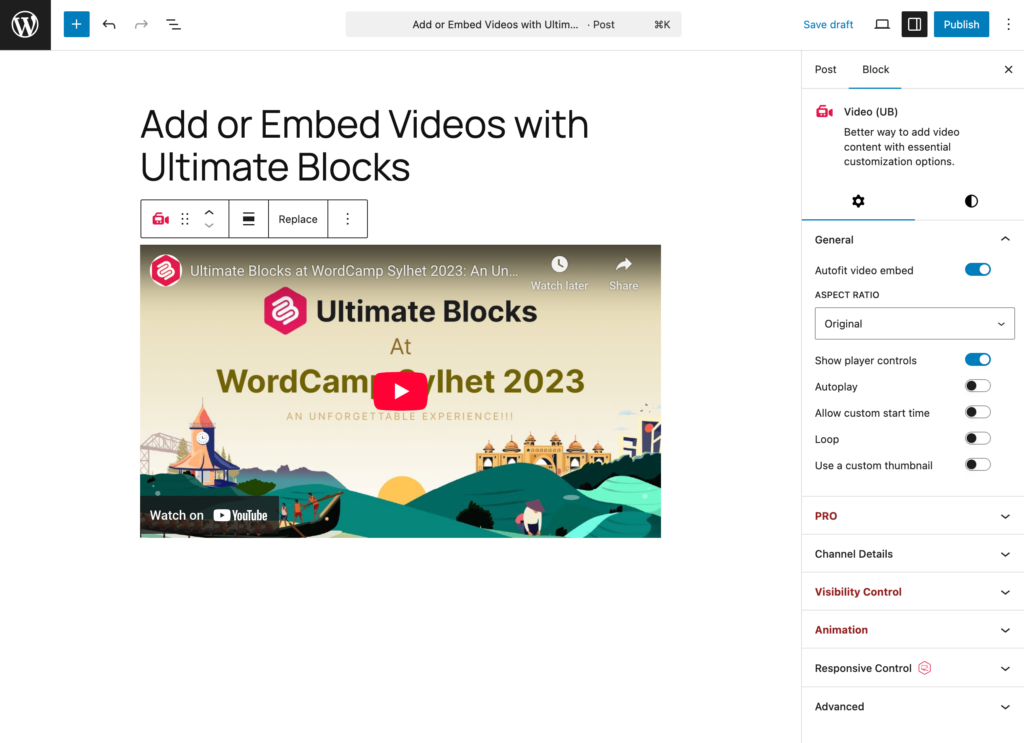
These options give you more flexibility over how videos appear and function on your website.
Quick Comparison
Feature |
Default Video Block |
Video (UB) Block |
|---|---|---|
Upload video |
✅ |
✅ |
Embed via URL |
✅ |
✅ |
Custom start time |
❌ |
✅ |
Aspect ratio control |
Limited |
✅ |
Custom thumbnail |
❌ |
✅ |
Visibility & animation |
❌ |
✅ |
Custom CSS |
❌ |
✅ |
If you only need to upload or embed a simple video, the default block works perfectly fine. But if you want more customization and control, the Video (UB) block gives you additional flexibility without requiring extra coding.
FAQs About Adding Videos in WordPress
What’s the difference between uploading and embedding a video in WordPress?
Uploading a video means storing the video file on your WordPress hosting server using the Video block.
Embedding a video means displaying a video hosted on platforms like YouTube or Vimeo without storing the file on your website. Embedding reduces server load, while uploading gives you full file control.
Can I upload videos directly to WordPress?
Yes, you can upload videos directly to WordPress using the default Video block in the Block Editor. The video file will be stored in your Media Library and hosted on your server. Keep in mind that large video files may impact storage space and bandwidth usage.
How do I embed a YouTube video in WordPress?
To embed a YouTube video in WordPress, copy the video URL and paste it into a YouTube block or directly into the editor. WordPress automatically converts the link into an embedded video player using built-in oEmbed support.
Is it better to upload or embed videos in WordPress?
To embed a YouTube video in WordPress, copy the video URL and paste it into a YouTube block or directly into the editor. WordPress automatically converts the link into an embedded video player using built-in oEmbed support.
What video formats does WordPress support?
WordPress supports common video formats such as MP4, WebM, and OGV. MP4 (H.264) is the most widely supported format and works across all modern browsers and devices.
How can I customize video playback settings in WordPress?
The default WordPress Video block allows basic playback controls. If you need more customization—such as autoplay, loop, custom start time, aspect ratio control, or custom thumbnails—you can use an advanced video block like the Video (UB) block.
Conclusion
Adding videos to WordPress is simple once you understand your options. You can upload a video directly using the default Video block or embed one from platforms like YouTube and Vimeo. Both methods work well, depending on your needs.
If you’re looking for more flexibility—such as better layout control, playback customization, or styling options—an advanced solution like the Video (UB) block can give you additional control without complicating the process.
Start with the method that fits your content goals, and upgrade your video setup as your website grows.


Leave a Reply