

Free + Pro features available
Tabbed Content Block
Put more content in less space. Split product details, FAQs, pricing or tutorials into tabs that readers switch with one click.
★★★★★ 4.9 from 700+ reviews · 50,000+ active sites · Read the docs →

Live demo
Click through real tabs
This is the actual Tabbed Content block. Switch tabs to see it work.

Lorem ipsum dolor sit amet, consectetur adipiscing elit, sed do eiusmod tempor incididunt ut labore et dolore magna aliqua. Lorem ipsum dolor sit amet, consectetur adipiscing elit, sed do eiusmod tempor incididunt ut labore et dolore magna aliqua.
Lorem ipsum dolor sit amet, consectetur adipiscing elit, sed do eiusmod tempor incididunt ut labore et dolore magna aliqua. Lorem ipsum dolor sit amet, consectetur adipiscing elit, sed do eiusmod tempor incididunt ut labore et dolore magna aliqua.
Lorem ipsum dolor sit amet, consectetur adipiscing elit, sed do eiusmod tempor incididunt ut labore et dolore magna aliqua. Lorem ipsum dolor sit amet, consectetur adipiscing elit.
Lorem ipsum dolor sit amet, consectetur adipiscing elit, sed do eiusmod tempor incididunt ut labore et dolore magna aliqua. Content for tab two.
More content – Lorem ipsum dolor sit amet, consectetur adipiscing elit, sed do eiusmod tempor incididunt ut labore et dolore magna aliqua. Lorem ipsum dolor sit amet, consectetur adipiscing elit, sed do eiusmod tempor incididunt ut labore et dolore magna aliqua.
active websites
from 700+ reviews
Featured on


Features
Tabs that fit your design
Tab styles, anchors and vertical layouts are free. Pro adds tab icons, secondary titles, tabs that link to other pages, and a sticky tab bar.

Tab styles
Choose classic tabs, pill tabs or minimal underline tabs.

Tab anchors
Give each tab its own anchor, so you can link straight to it.

Secondary titles PRO
Add a short line of extra text under each tab title.

Icons in tabs PRO
Add icons to tab titles to make them easier to scan.

Tabs as links PRO
Turn a tab into a link that sends readers straight to another page, like your pricing or signup page.

Your colors
Style tabs and content to match your brand.

Horizontal or vertical
Show tabs across the top, or stack them down the side for longer lists of options.
Ideas
Ways to use tabs
Real examples built with the Tabbed Content block.
Organize Your Content
Showcase Product Specifications

Apple 2020 MacBook Air Laptop M1 Chip, 13″ Retina Display, 8GB RAM, 256GB SSD Storage, Backlit Keyboard, FaceTime HD Camera, Touch ID. Works with iPhone/iPad; Gold
- All-Day Battery Life
- Powerful Performance
- Superfast Memory
- Stunning Display
- Simply Compatible
- Brand: Apple
- Model Name: MacBook Air
- Screen Size: 13.3 Inches
- Color: Silver
- Hard Disk Size: 256 GB
- CPU Model: Unknown
- Ram Memory Installed Size: 8 GB
- Operating System: Mac OS
- Special Feature: Backlit Keyboard
- Graphics Card Description: Integrated
Add FAQs Section With Content Toggle
What is Ultimate Blocks?
Ultimate Blocks is a Gutenberg blocks plugin that extends the functionalities of the new WordPress Block Editor.
Is ‘Ultimate Blocks’ free?
Do I need to have coding skills to use Ultimate Blocks?
Can I use Ultimate Blocks on client sites?
Will Ultimate Blocks slow down my site?
Does Ultimate Blocks work like a page builder?
Is it SEO-Friendly?
Is It Optimized for Speed?
Can I enable/disable individual blocks?
Is there any lifetime deal fo Ultiimate Blocks?
Does it offer any Money Back Guarantee?
Can I cancel the subscription anytime?
Do you frequently update the plugin?
Show Step-by-Step Tutorials
Install the Ultimate Blocks Plugin
First, go to your WordPress dashboard and navigate to Plugins > Add New. Then search for ‘Ultimate Blocks’ and install & activate the plugin.
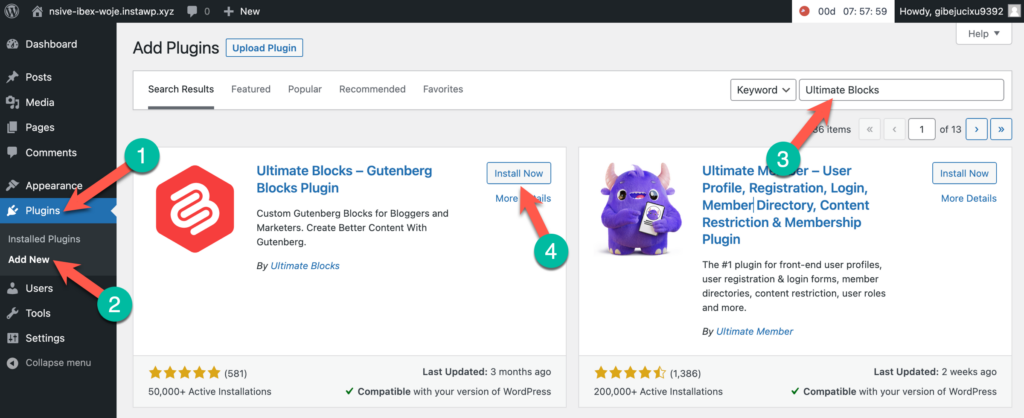
Add the ‘Tabbed Content’ Block
Now go to the post/page where you want to add tabs. Then click on + (plus) icon and search ‘Tabbed Content’. Click on the ‘Tabbed Content’ block to add it.

Add More Tabs
To add more tabs, click on the + icon on the tab row. To delete any particular tab, select the tab and press on the – icon.

Add Content to the Tabs
To add content, select the tab first and then press + icon. You can add any type of content there.

Customize the Tabbed Content Block
From the right-hand side options panel, you can change colors, tab type, tab layout, and more.

Showcase Pricing Plans With Toggle
Basic
$5/month
- Store up to 20 songs
- 2 Collaborators
- Unlimited shares
- 12 Bit AES encryption
- Mac, PC, Android
Professional
$25/month
- Everything in Basic
- 250GB of songs storage
- 250GB of assets storage
- 2 collaborators
- Share link password
Team
$75/month
- Everything in Professional
- Workspace with up to 10 users
- Custom storage plans
- 2 collaborators
Basic
$50/year
- Store up to 20 songs
- 2 Collaborators
- Unlimited shares
- 12 Bit AES encryption
- Mac, PC, Android
Professional
$250/year
- Everything in Basic
- 250GB of songs storage
- 250GB of assets storage
- 2 collaborators
- Share link password
Team
$750/year
- Everything in Professional
- Workspace with up to 10 users
- Custom storage plans
- 2 collaborators
Basic
$200
- Store up to 20 songs
- 2 Collaborators
- Unlimited shares
- 12 Bit AES encryption
- Mac, PC, Android
Professional
$1000
- Everything in Basic
- 250GB of songs storage
- 250GB of assets storage
- 2 collaborators
- Share link password
Team
$5000
- Everything in Professional
- Workspace with up to 10 users
- Custom storage plans
- 2 collaborators
How it works
Add it in three steps
1
Install Ultimate Blocks
Install the free plugin from your WordPress dashboard under Plugins → Add New, then activate it.
2
Add the block
In any post or page, type /tabbed content and press Enter, then name your first tabs.
3
Fill and style your tabs
Add any blocks inside each tab, then pick a tab style, icons and colors.
Questions about the Tabbed Content block
Need more help? See the documentation or contact our team.
Can I put any block inside a tab?
Yes. Each tab can hold any block, including images, tables, buttons and even accordions.
Can I link directly to a tab?
Yes. Give a tab an anchor and link to it from anywhere.
Can I show tabs vertically?
Yes. Switch between horizontal tabs across the top and vertical tabs down the side.
Is the Tabbed Content block free?
Yes. It is part of the free Ultimate Blocks plugin. Tab icons, secondary titles, tabs that link to other pages and a sticky tab bar come with Pro.
Does it work with my theme?
It works with any theme that supports the WordPress block editor, including block themes and Full Site Editing.
More blocks for organizing content
Content Toggle (FAQ)ExpandContent FilterTable of ContentsStyled BoxImage Hotspots PROSee all 29 blocks →
Fit more on every page
Join 50,000+ WordPress sites already using Ultimate Blocks.