

The Video block in Ultimate Blocks lets you add a YouTube, Vimeo, Dailymotion or VideoPress video, or a video file from your media library, to any WordPress post or page, and control how it plays. You can make it fit the page, autoplay it, start it at a set time, loop it, mute it and show your own thumbnail. The block is free, and Ultimate Blocks Pro adds YouTube channel details with a Subscribe button under the video.
| Block name in the editor | Video (UB) |
| Plan | Free (YouTube channel details and Subscribe button need Pro) |
| Best for | Tutorials, product demos, course lessons, video reviews and landing pages |
| Live demo | See the Video block in action |
What you can use it for #
- Embed YouTube tutorials or product demos inside blog posts.
- Show a short muted, looping background style clip on a landing page.
- Start a long video at the exact moment that answers the reader’s question.
- Replace the default preview image with a branded custom thumbnail.
- Host your own MP4 files from the media library without a third party player.
- Grow your YouTube channel with a Subscribe button under every video (Pro).
How to add the Video block #
- Open the post or page in the WordPress block editor.
- Click the + (Block Inserter) button.
- Search for Video (UB) and click the block to add it.
- The block shows a Select Video Source box. Choose how you want to add your video (see the next section).

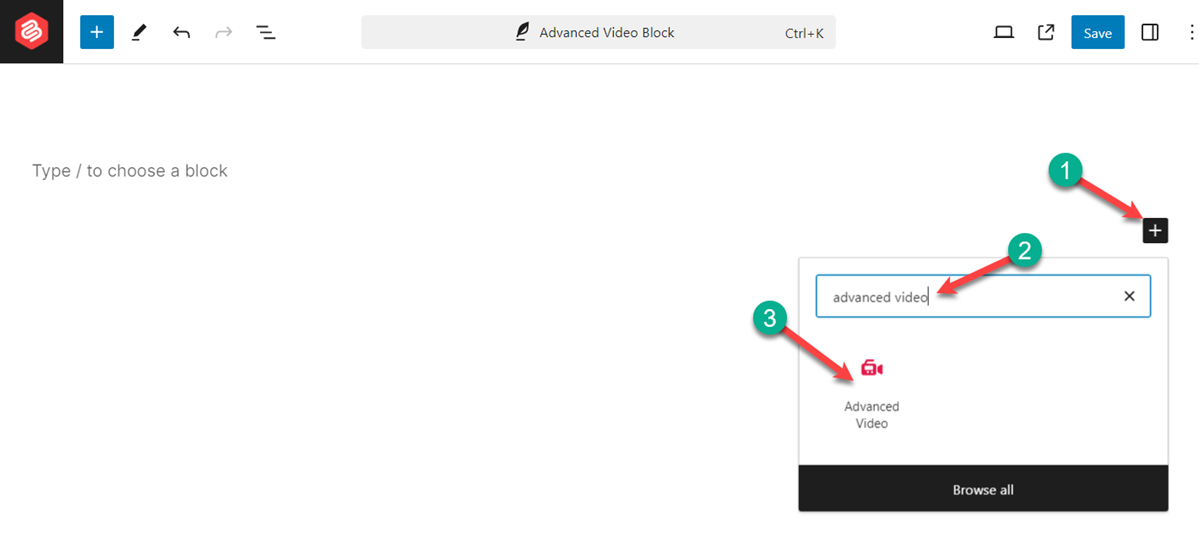
In older versions of the plugin this block was called Advanced Video. It is the same block.
Add your video #
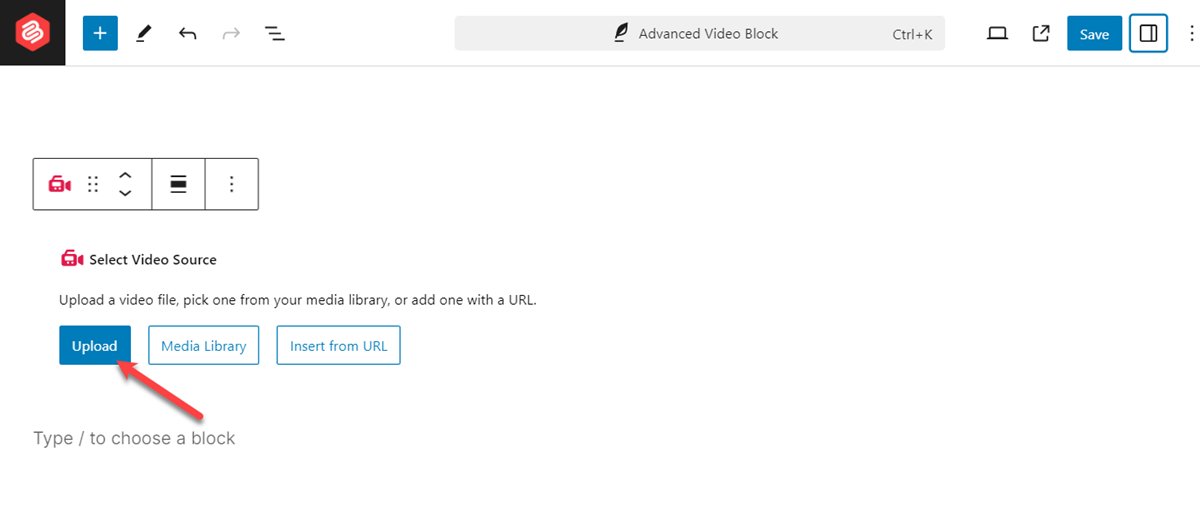
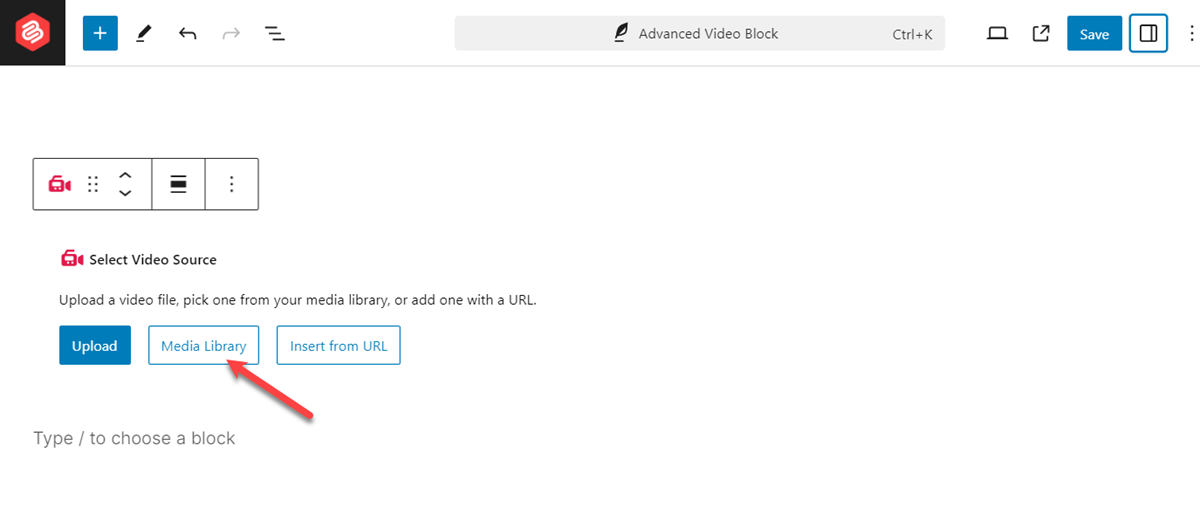
The block gives you three ways to add a video: Upload, Media Library and Insert from URL.
Upload a video file #
- Click Upload.
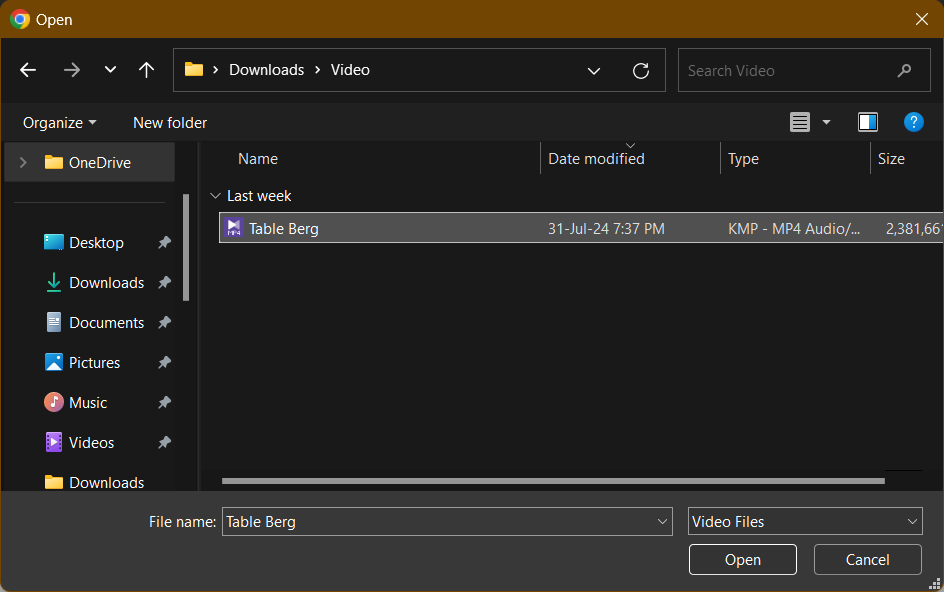
- Choose the video file on your computer and click Open. The file is added to your media library and appears in the block.
Pick a video from the media library #
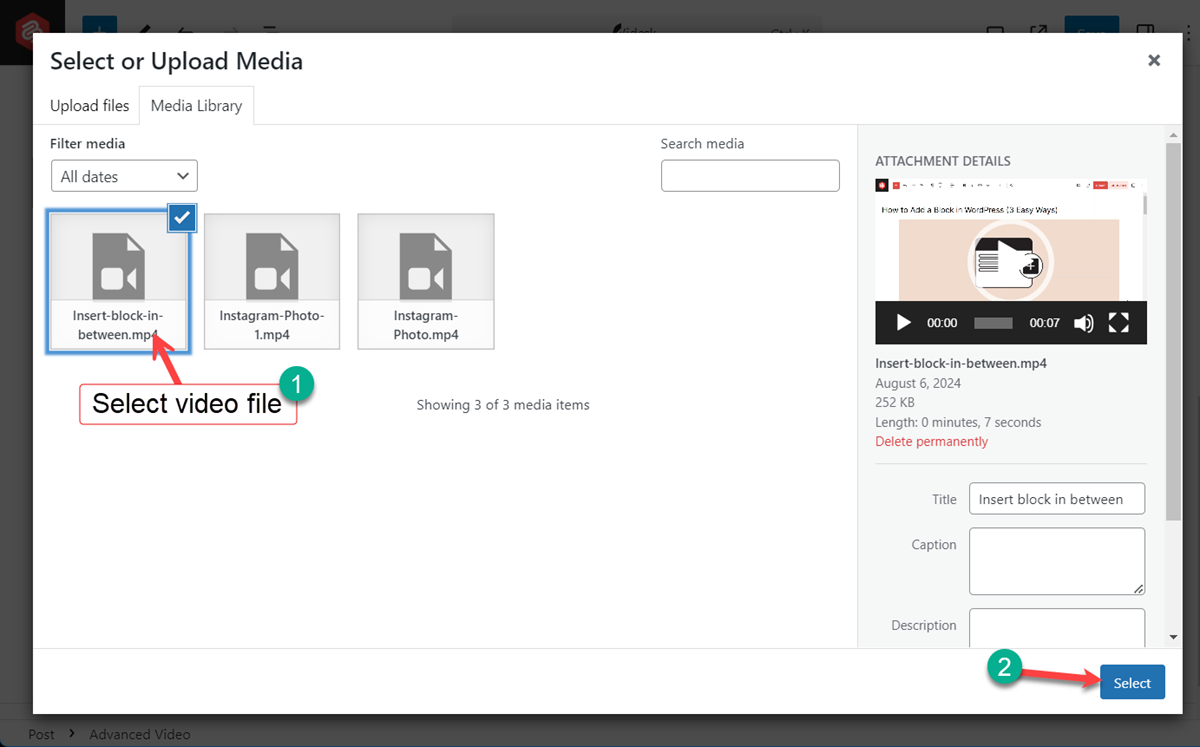
- Click Media Library and find your video file. You can also upload a new file from this window.
- Select the video. You can fill in its title and other details in the right panel.
- Click Select.


Insert a video from a URL #
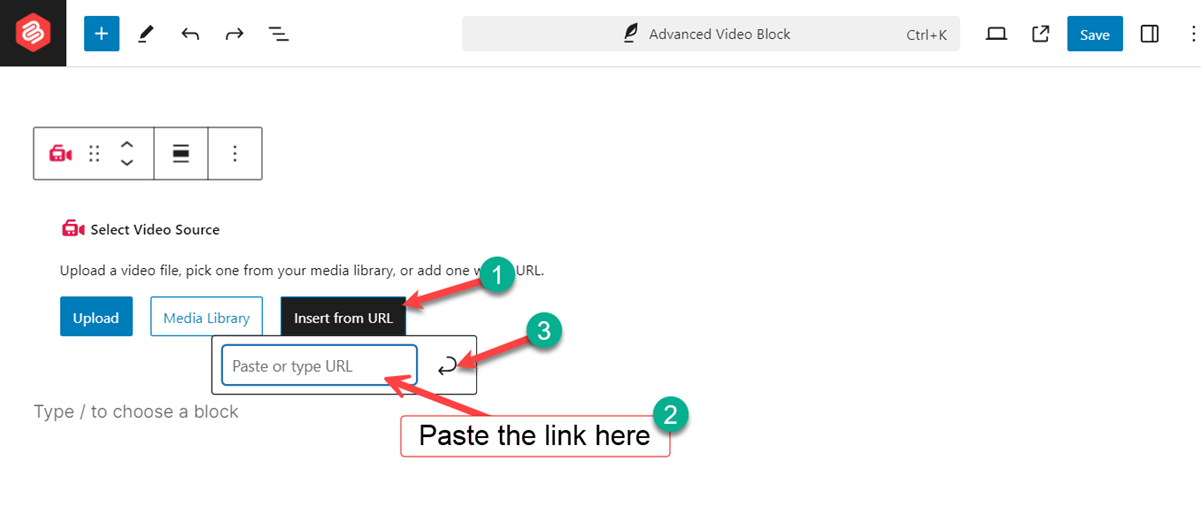
- Copy the address of the video, for example a YouTube, Vimeo, Dailymotion or VideoPress link.
- Click Insert from URL.
- Paste the link and press Enter. The video loads in the block.

Supported sources: YouTube (including Shorts links), Vimeo, Dailymotion, VideoPress, and videos from your media library. The block also accepts a direct link to a video file, and it recognizes Facebook and TikTok video links, but these get fewer playback options. If a link cannot be read, the block shows No video found at URL.
To swap the video later, select the block and click Replace in the block toolbar. You can also turn a core YouTube or other Embed block into this block: select it, click the block icon at the left of the toolbar and choose Video (UB).
Settings tab #
Select the block and open the block sidebar on the right. The Settings tab (gear icon) has these panels. The General panel appears after you add a video.
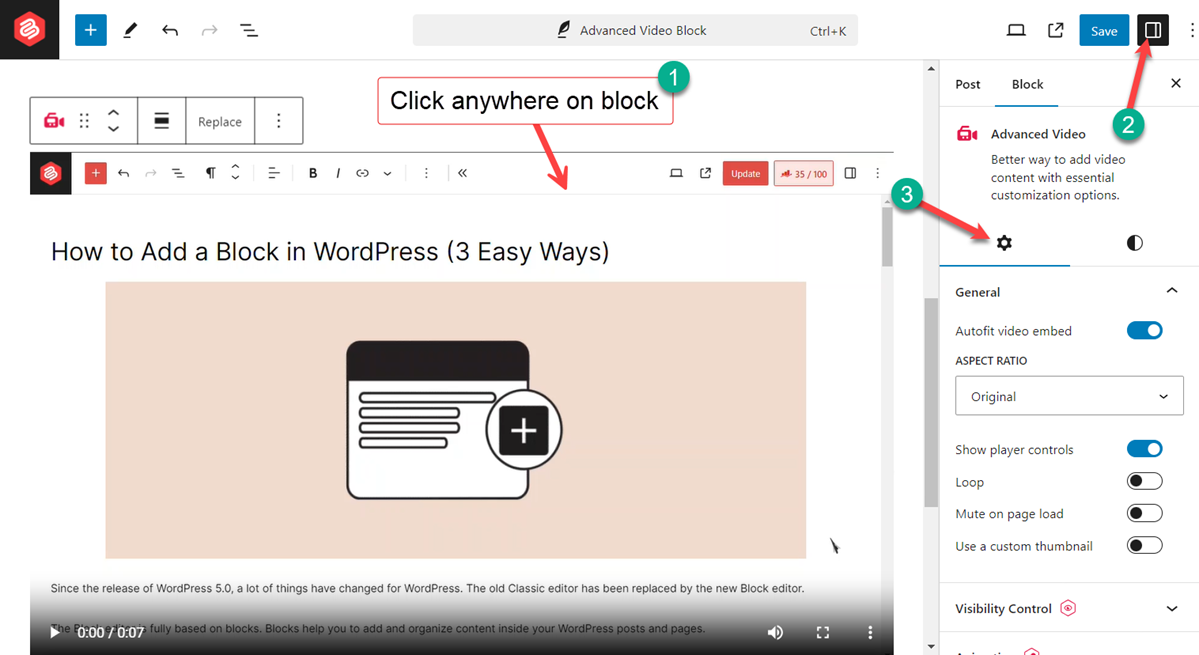

General #
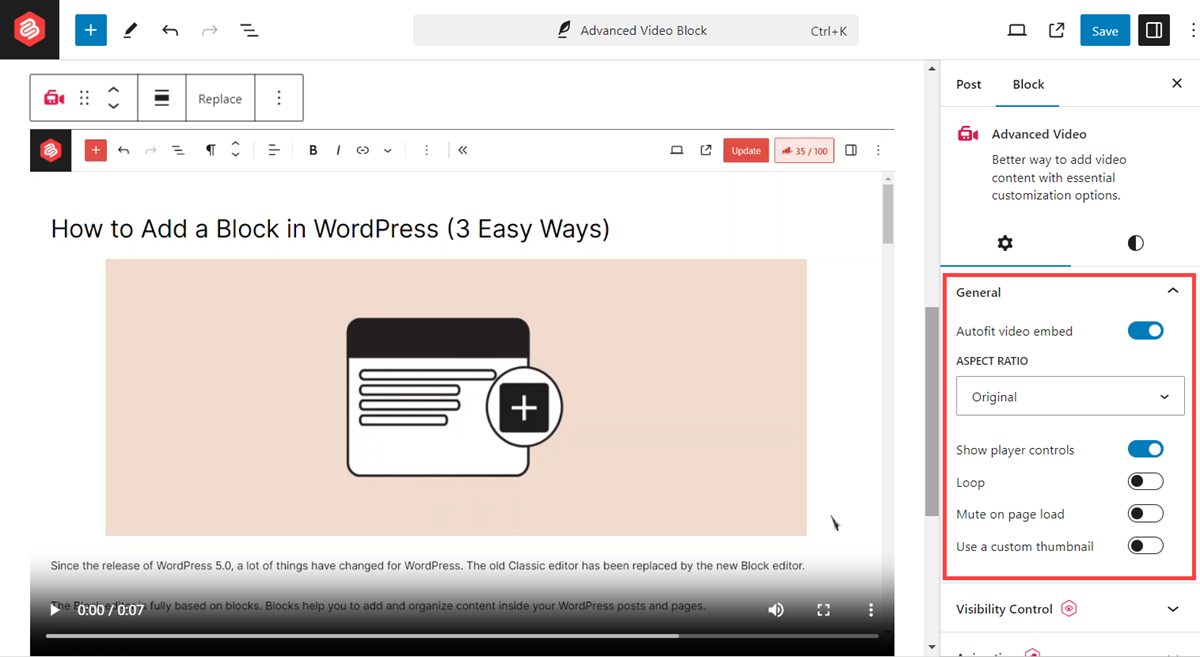
- Autofit video embed: make the video fill the full width of its container and resize on every screen. Turn this on for most posts.
- Aspect Ratio: shown when autofit is on. Choose Original, Square – 1:1, Standard – 4:3, Portrait – 3:4, Classic – 3:2, Classic Portrait – 2:3, Wide – 16:9 or Tall – 9:16. Use 9:16 for vertical videos such as YouTube Shorts.
- Video width (percentage): shown when autofit is off. Set the width from 0 to 100 percent of the container.
- Preserve aspect ratio: shown when autofit is off. Keep the original shape of the video when you change the width.
- Video height (pixels): shown when autofit and Preserve aspect ratio are both off. Set a fixed height from 200 to 1600 pixels.
- Show player controls: show or hide the play, pause, volume and full screen controls. For Vimeo, this option appears only when the video owner has a paid Vimeo account.
- Autoplay: start the video as soon as the page loads. For YouTube, the block also mutes the video, because browsers block autoplay with sound.
- Allow custom start time: start the video at a set point. Enter the time in the Start time boxes (hours, minutes and seconds, depending on the video length).
- Loop: play the video again when it ends. Available for YouTube, Vimeo, VideoPress and media library videos.
- Mute on page load: load the video without sound. Visitors can turn the sound on. Available for Vimeo, Dailymotion, VideoPress and media library videos.
- Use a custom thumbnail: show your own preview image before the video plays. Click Upload to pick an image, or Insert thumbnail URL to paste an image address. Click Replace to change it. For Vimeo, a custom thumbnail and autoplay cannot be used together.
Visibility Control (Pro) #
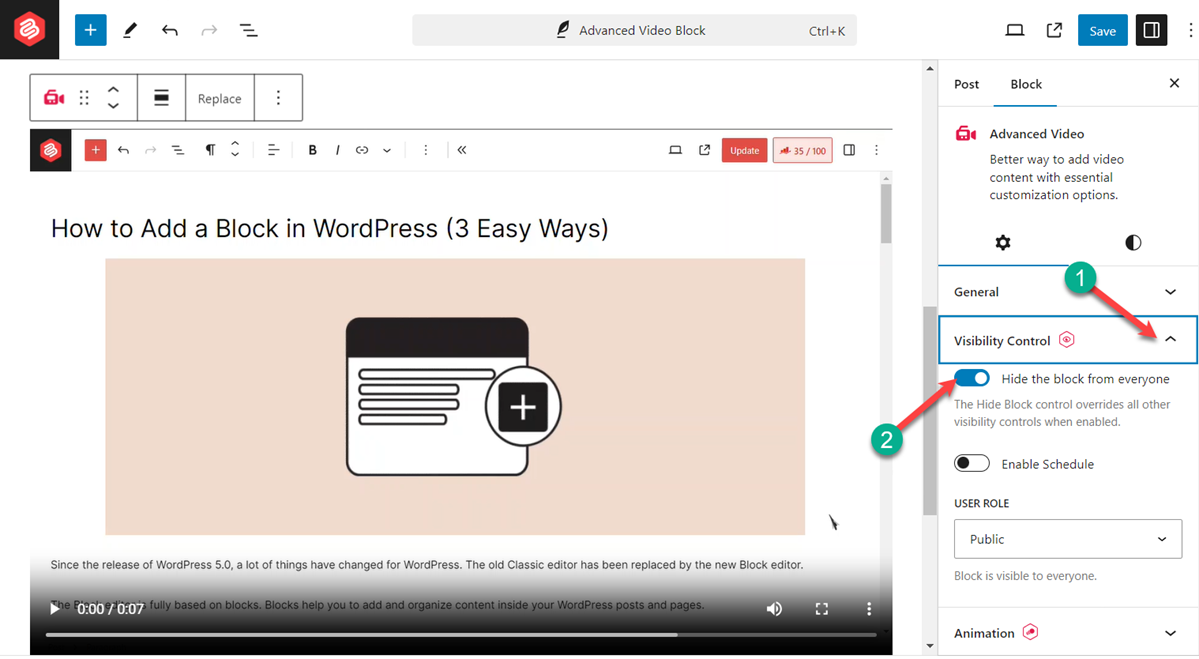
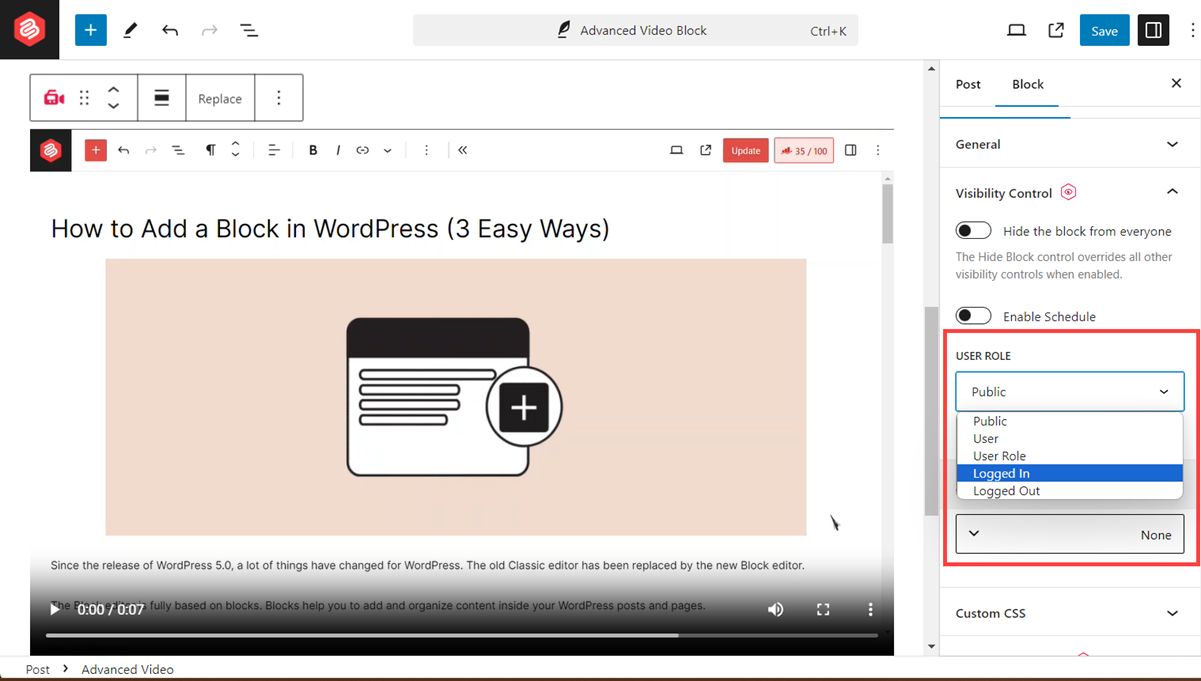
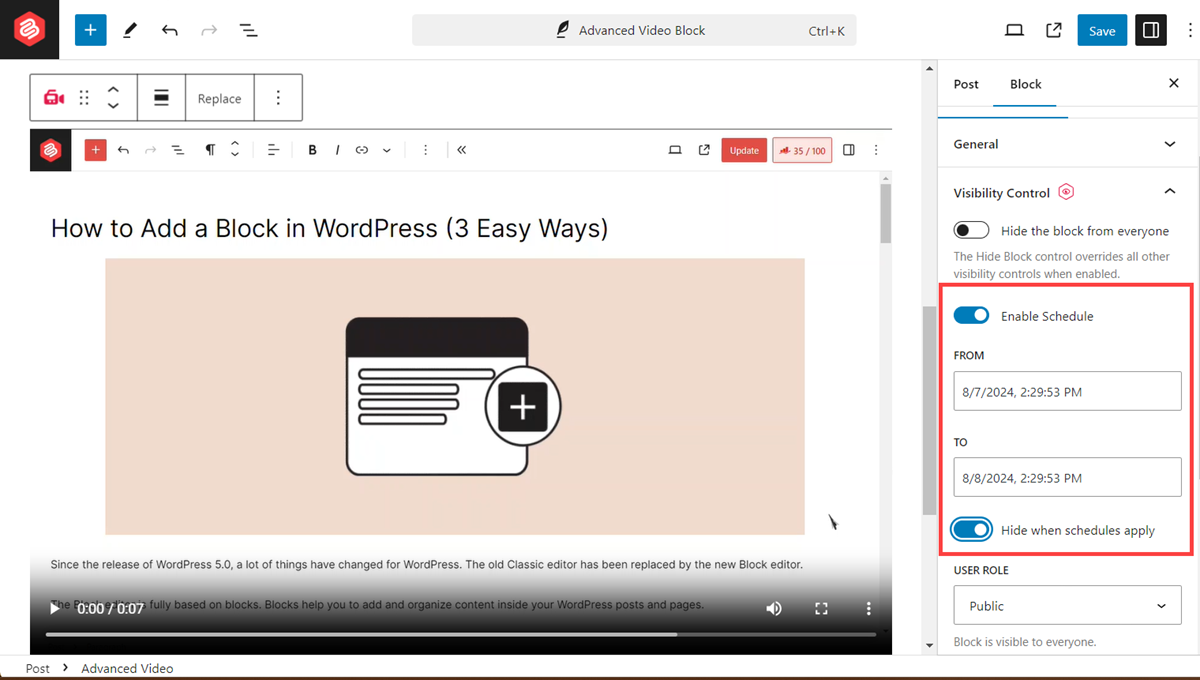
Show or hide the video for certain visitors. Turn on Hide the block from everyone to hide it completely, choose a User Role to show it only to those users, or turn on Enable Schedule and set From and To dates. Read the Visibility Control guide.
Animation (Pro) #
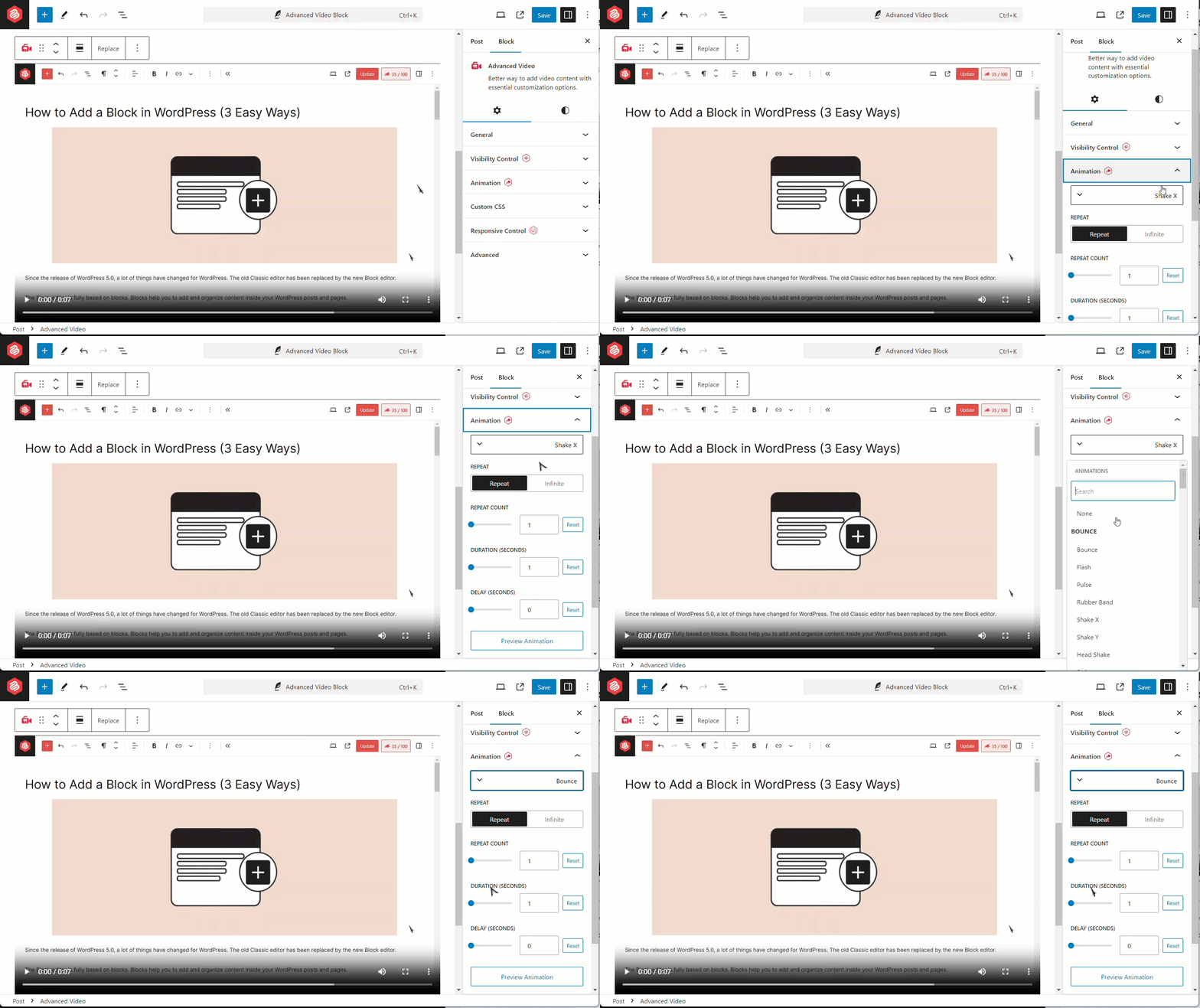
Pick an entrance effect for the video, then set Repeat, Repeat Count, Duration (Seconds) and Delay (Seconds). Click Preview Animation to test it.
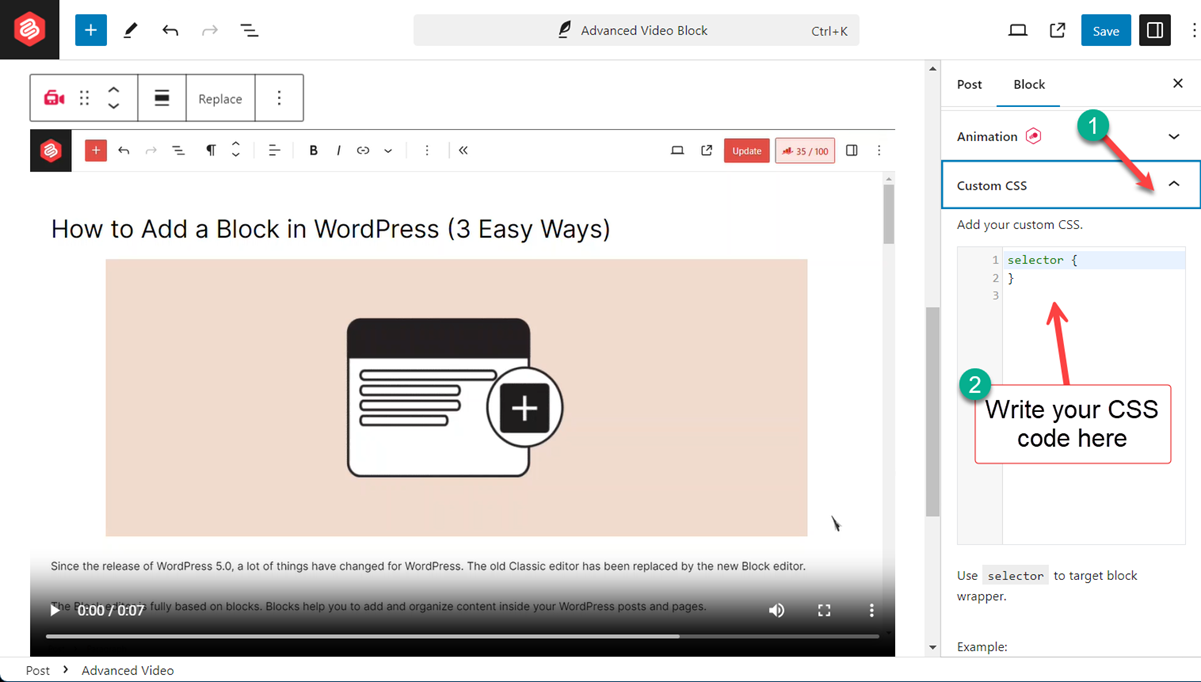
Custom CSS #
Add your own CSS to this block only. Type selector to target the current block.
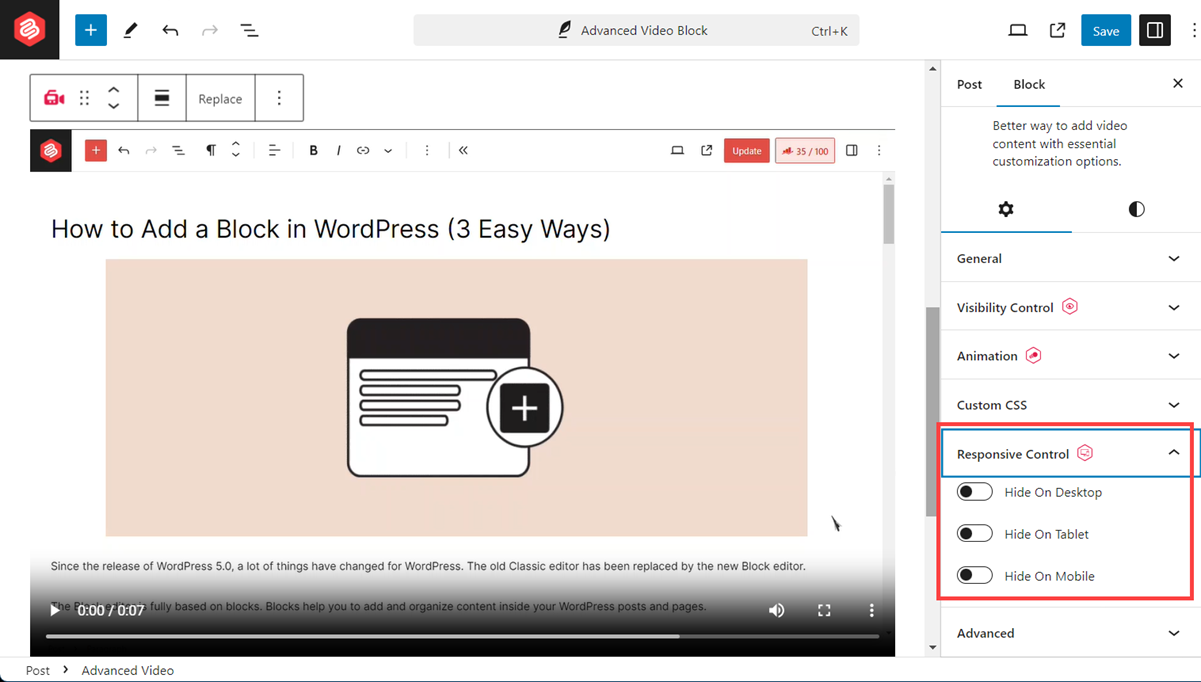
Responsive Control #
Turn on Hide On Desktop, Hide On Tablet or Hide On Mobile to hide the video on that screen size.
Styles tab #
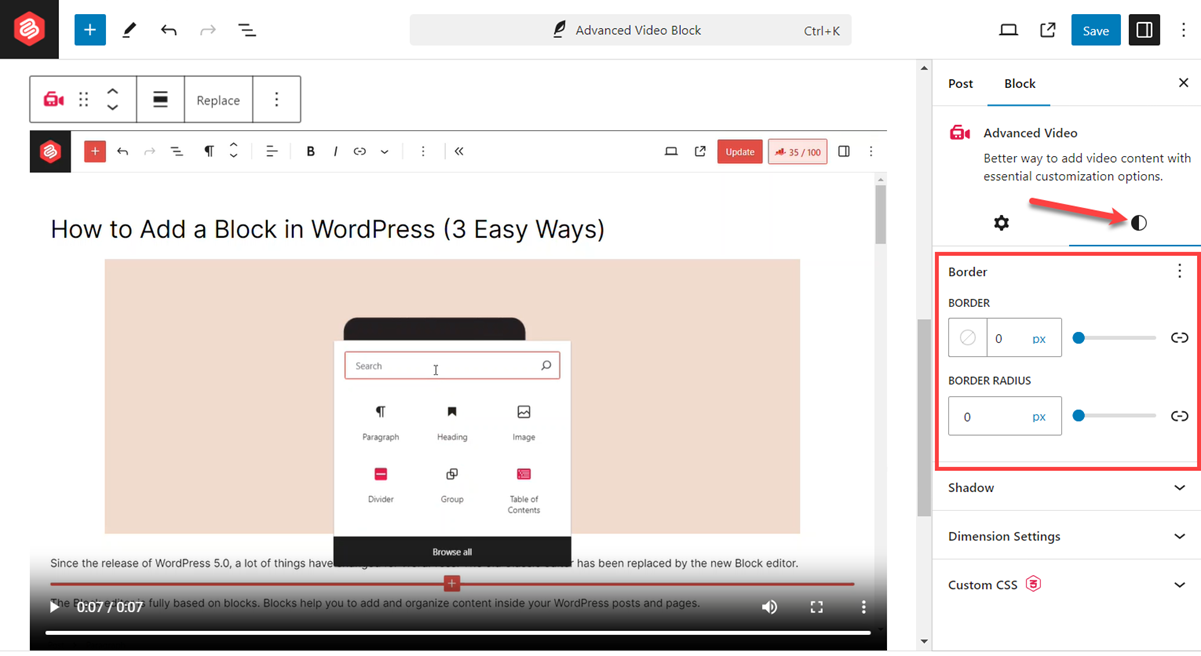
Switch to the Styles tab (half-circle icon) to change the frame around the video.

Border #
Set the Border width, style and color, and round the corners with Border Radius. You can set each side and corner separately.
Shadow #
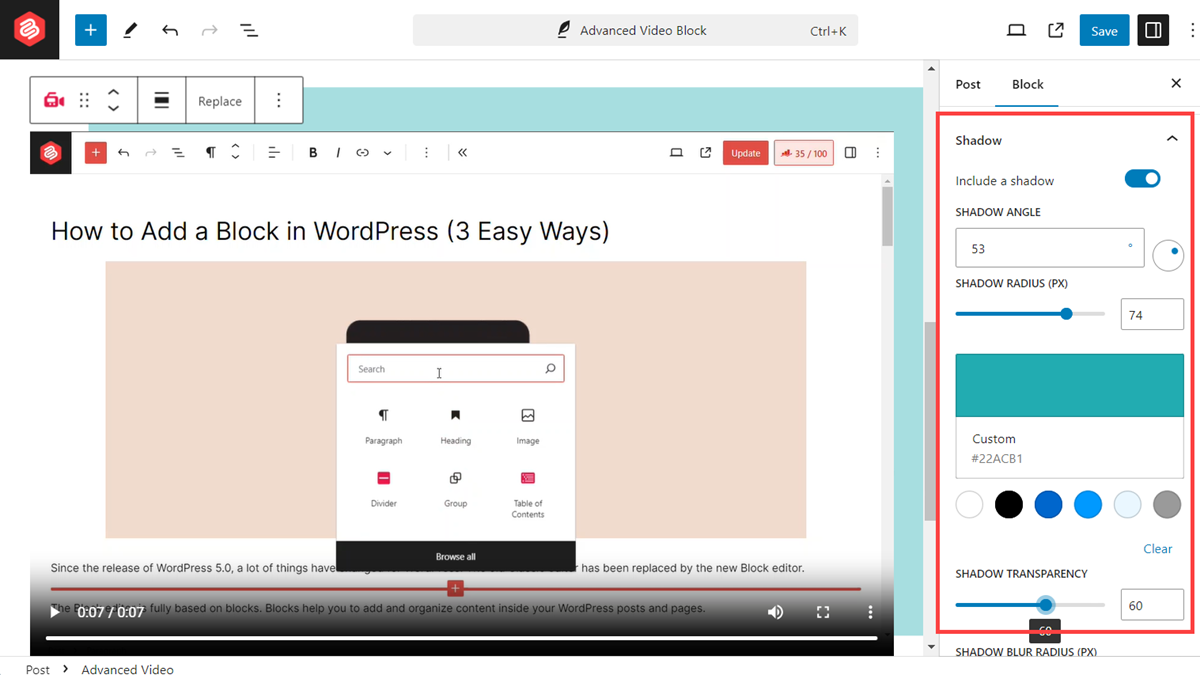
- Include a shadow: turn the shadow on or off.
- Shadow angle: set the direction of the shadow. You can drag the small circle.
- Shadow radius (px): set how far the shadow moves away from the video.
- Shadow color and Shadow transparency: pick the color and how see-through it is.
- Shadow blur radius (px): soften the shadow edges.
- Shadow spread radius (px): make the shadow larger or smaller.
Dimension Settings #
Set the Padding and Margin around the video.
Tip: Use Copy Style and Paste Style in the block toolbar to copy the look of one Video block to another.
Pro features #
- Channel Settings: show your YouTube channel name and logo under the video.
- Show Subscribe Button: add a YouTube Subscribe button next to the channel details, so viewers can subscribe without leaving your site.
These options work with YouTube videos. Read the full guide: How to add a YouTube Subscribe button to videos. Get Ultimate Blocks Pro to unlock them.
Extensions you can use with this block #
- Visibility Control (Pro): show the block only to certain users or on a schedule.
- Animation (Pro): animate the block when it comes into view.
- Responsive Control: hide the block on desktop, tablet or mobile.
- Custom CSS: add your own CSS to this block only.
- Saved Styles (Pro): save your design and reuse it on other posts.
Frequently asked questions #
Is the Ultimate Blocks Video block free?
Yes. The Video (UB) block is part of the free Ultimate Blocks plugin. Only the YouTube channel details and Subscribe button need Ultimate Blocks Pro.
Which video sites does the Video block support?
It supports YouTube, Vimeo, Dailymotion and VideoPress links, plus video files you upload to your media library. It also accepts direct links to video files.
Why does my YouTube video play without sound when autoplay is on?
Browsers only allow autoplay when a video is muted, so the block mutes YouTube videos that autoplay. Visitors can turn the sound on in the player.
How do I start a video at a specific time?
Turn on Allow custom start time in the General panel and enter the hours, minutes and seconds in the Start time boxes.
Can I use my own thumbnail for a video?
Yes. Turn on Use a custom thumbnail, then upload an image or insert an image URL. The image shows until the visitor plays the video.
How do I make the video responsive?
Turn on Autofit video embed. The video then fills the width of its container on every screen, and you can pick an aspect ratio such as 16:9 or 9:16.


