

Sometimes, you may notice that a block from Ultimate Blocks is no longer available in the editor. This can feel like the block has disappeared, but in most cases, it’s simply disabled.
In this guide, we’ll show you how to quickly bring it back.
Why Did the Block Disappear? #
Ultimate Blocks includes a Global Control feature that lets you enable or disable individual blocks.
If a block is turned off from the settings, it will:
- Not appear in the block inserter
- Not be searchable in the editor
- Feel like it has been removed
How to Fix It (Enable the Block Again) #
Follow these steps to re-enable the missing block:
Step 1: Go to Ultimate Blocks Settings #
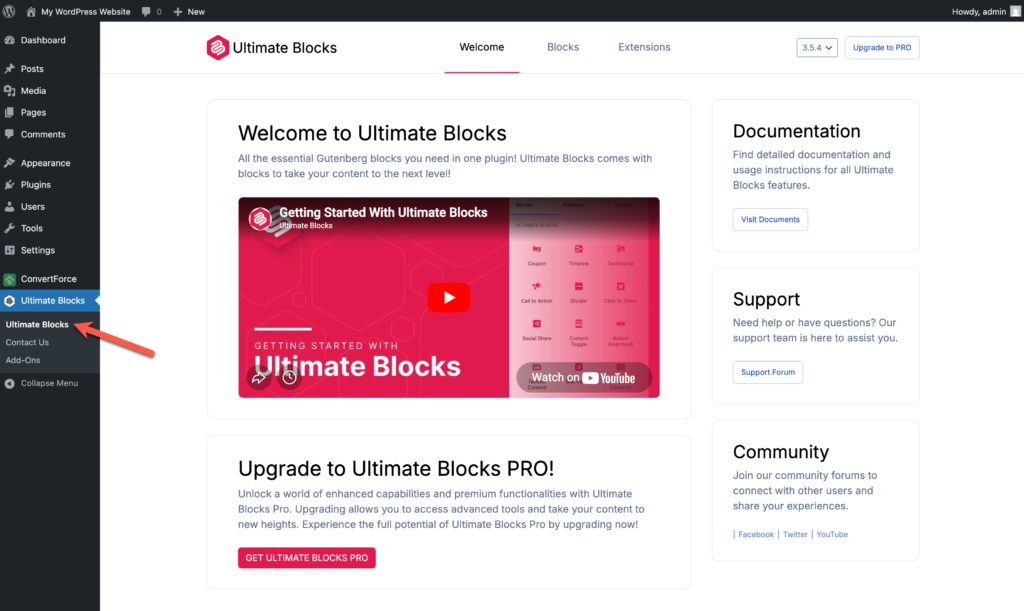
From your WordPress dashboard, click on Ultimate Blocks.
Step 2: Open the Blocks Tab #
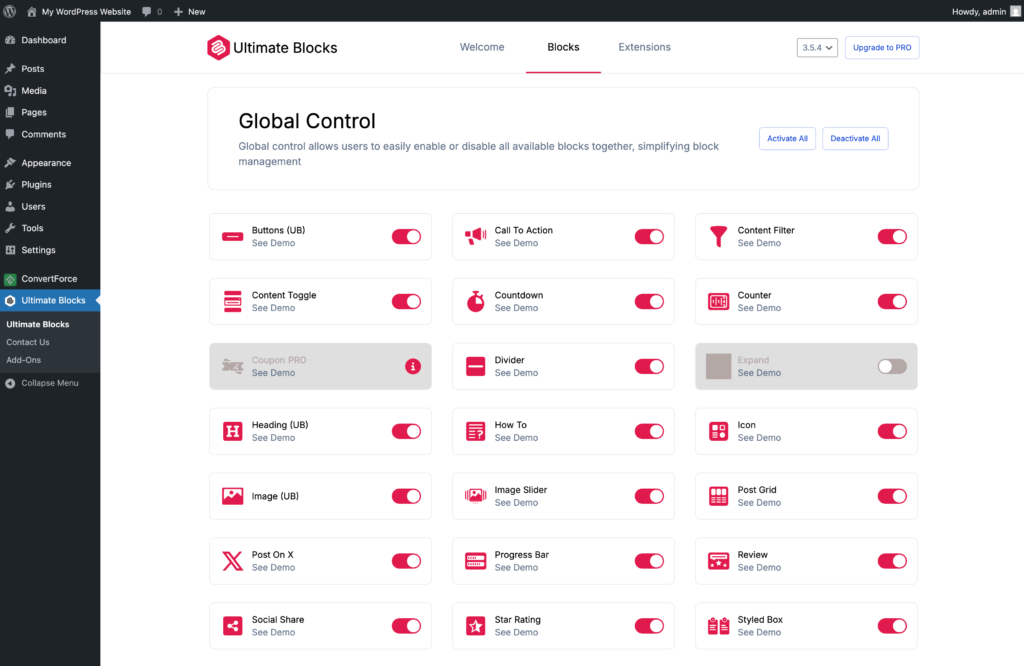
Navigate to the Blocks tab at the top.
Step 3: Find the Missing Block #
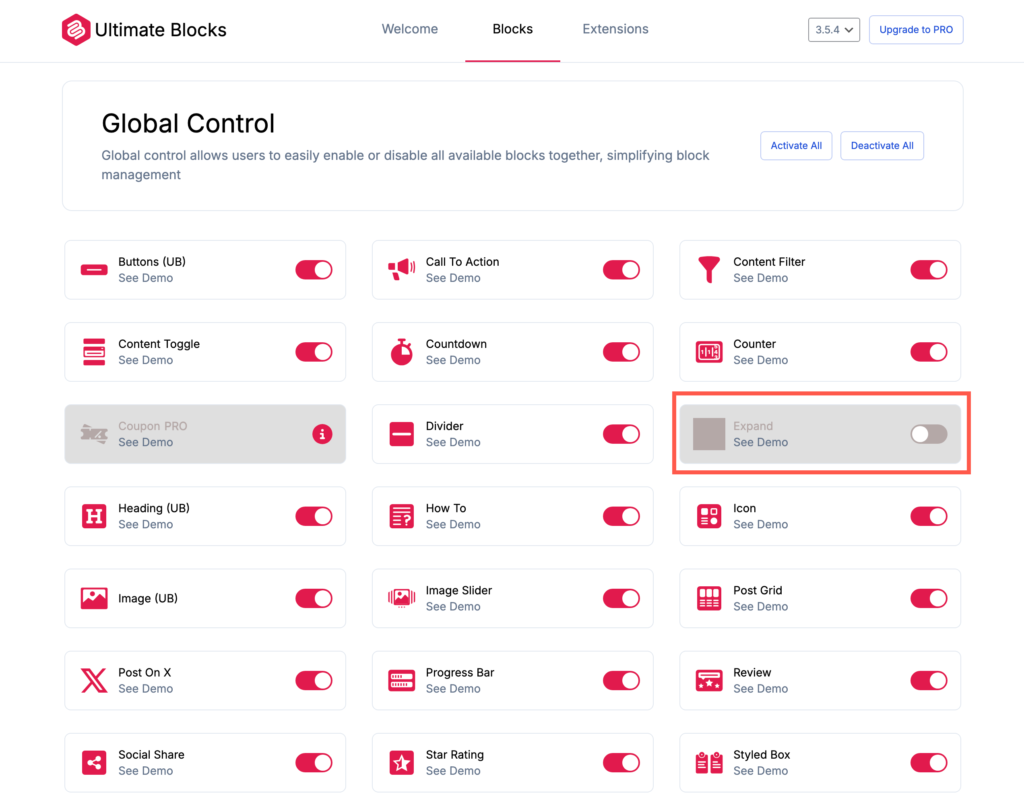
Look for the block that is missing (let’s say we are looking for the Expand block).
Step 4: Enable the Block #
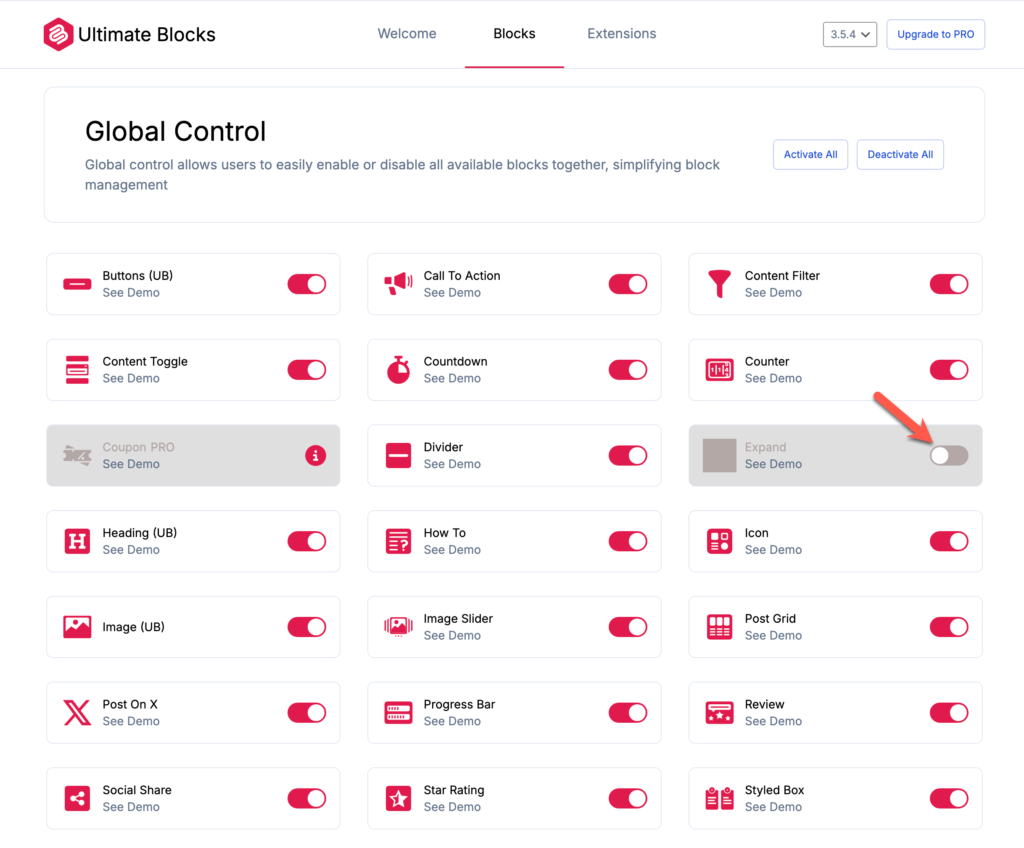
Turn ON the toggle next to the block.
Step 5: Go Back to the Editor #
- Refresh your post/page
- Search for the block again — it should now be available
Tip #
If you ever can’t find a block:
- First check the Blocks panel in Ultimate Blocks settings
- Most of the time, it’s just disabled
Still Not Showing? #
If the block is enabled but still not visible:
- Try refreshing the editor
- Clear your browser cache
- Make sure Ultimate Blocks is updated to the latest version
Conclusion #
In most cases, a “missing” block isn’t gone — it’s just disabled. By enabling it from the Ultimate Blocks settings, you can quickly restore it and continue working without any issues.


